Why Are My Photos HEIC Instead of JPG: A Clear Guide
Your photos are HEIC instead of JPG because modern iPhones save new photos in HEIF/HEVC by default to save storage. Your image isn't broken or corrupted, it just needs software that can decode that format, or a quick switch in your camera settings for future shots.
That distinction is easy to miss in the moment. You're trying to upload a photo, send it to a client, or share an event gallery, and suddenly a file that looked fine on your phone won't open somewhere else.
You Did Nothing Wrong, Your iPhone Did
HEIC often shows up at an inconvenient moment. You AirDrop a photo to a laptop and it won't preview, you upload a batch to a form and the site rejects it, or you send event photos to an attendee whose work PC shows a blank thumbnail.
You didn't press the wrong button, and you didn't damage the file. The photo is complete. It's just saved in a newer format than the app or computer on the other end expects.
Why This Started Happening
Apple changed the default, not you. Apple made HEIF the default iPhone photo format with iOS 11 in September 2017, and it remains the default on iPhone 7, iPhone 7 Plus, and newer models unless you switch the setting yourself.
Apple calls that default High Efficiency. The goal is straightforward, keep photos looking good while using less storage on your phone and in iCloud.
Why You Only Notice Sometimes
Many Apple apps handle the translation behind the scenes. You might message a photo to a friend and never learn it started as HEIC. The format becomes visible when a workflow preserves the original file instead of converting it for you.
That's common with:
- Direct file transfers: A download from a cloud library often keeps the original format intact.
- Professional handoffs: A photographer delivering originals may pass along HEIC files exactly as captured.
- Mixed device teams: An iPhone photo shared to a Windows laptop or older web tool hits software that may not read it.
Calm starting point: If you can see the photo on your iPhone, the image data is there. You're solving a compatibility problem, not rescuing a broken picture.
So if you've been asking why are my photos HEIC instead of JPG, the short story is that your phone is following its default instructions. The useful question is what that format is, and when you should convert it.
What HEIC Actually Is
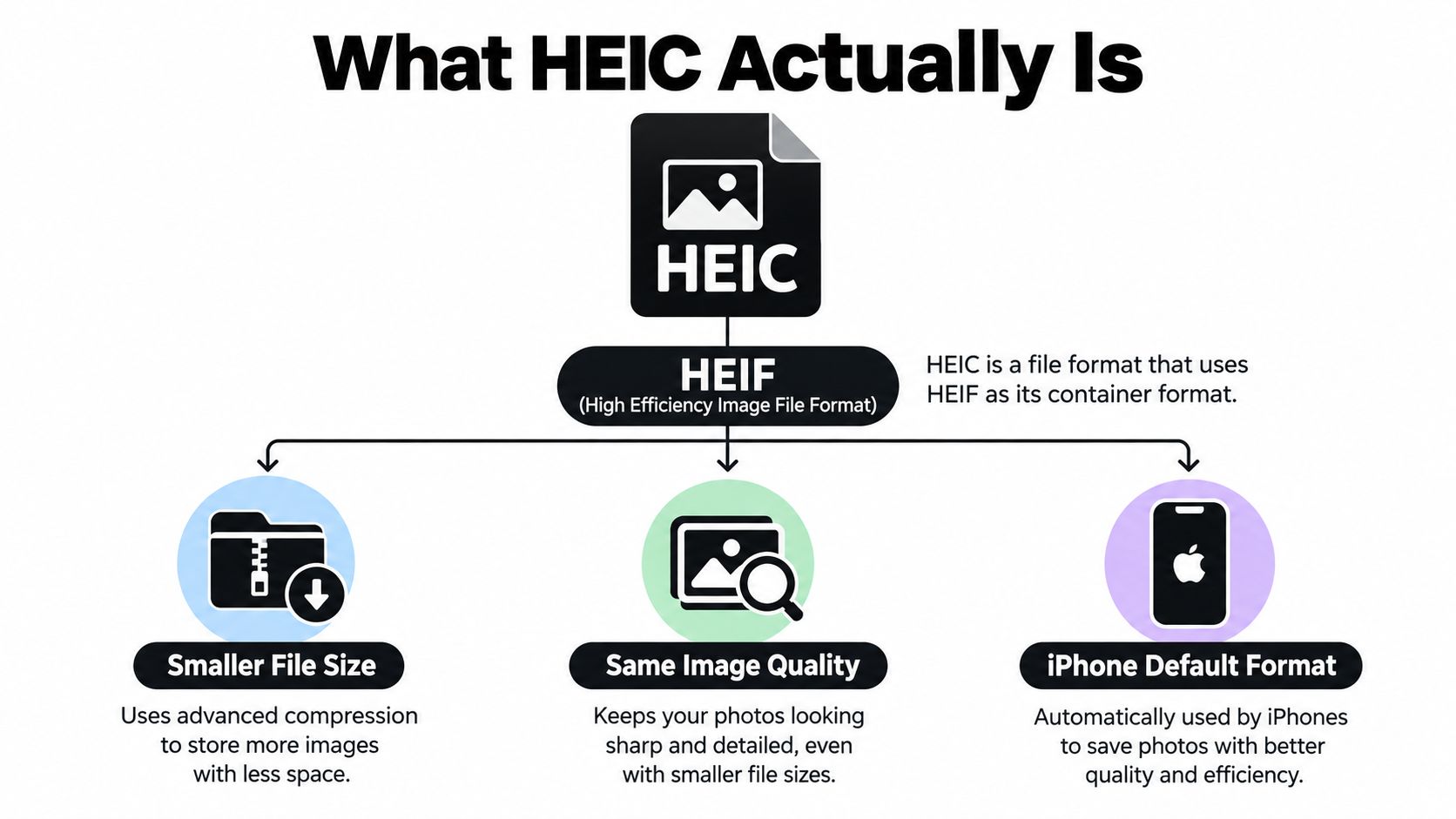
HEIF stands for High Efficiency Image File Format. It's the container, the structured wrapper that holds the image data. HEIC is the file extension you usually see when that container holds an image compressed with HEVC.
Think of JPG as a single photograph slipped into an envelope. Think of HEIC as a smart folder. It can hold the main photo plus extra information your phone captured, all packed efficiently in one file.
The Codec Is the Part That Matters
A codec is the method used to compress and decompress the image. Your software needs to understand both the HEIF container and the HEVC compression inside it.
That two part requirement explains the confusion. Microsoft documents that HEIF files commonly use HEVC as the default compression method and typically carry the .heic extension, so a device can recognize the filename yet still fail to decode the picture.
Three Things to Get Straight
- HEIC isn't a renamed JPG: The underlying compression is different, so changing the filename doesn't change the file.
- HEIC isn't lower quality: It generally aims for comparable visual quality to JPEG while using less storage.
- HEIC isn't universally readable: Support depends on the operating system, app, browser, and extensions installed on the receiving device.
For a personal photo shared between two recent iPhones, none of this may matter. For event photos sent to hundreds of people, it matters a lot. Your gallery has to survive phones, office laptops, school computers, printers, and social apps, and each one may handle that smart folder differently.
That is why photographers talk about HEIC as a delivery question, not a camera quality question. The file itself can be excellent while still being the wrong thing to hand to a mixed audience.
HEIC vs JPG on the Criteria That Matter
Don't frame this as a contest with one winner. Treat it as a placement decision. HEIC is strong at capture and storage. JPG is strong at handoff, because almost every tool your recipients use already knows how to read it.
Start with file size and quality. HEIC generally keeps a photo looking comparable to a JPG while taking less room, which helps when you're storing a large library or backing up originals. When you convert a HEIC to JPG, don't be surprised if the JPG is larger. That's expected behavior, not a mistake.
HEIC vs JPG at a Glance
| Criterion | HEIC | JPG |
|---|---|---|
| Storage on your phone | Uses less space at comparable visual quality | Uses more space for a similar looking photo |
| Color and editing headroom | Can preserve richer image data for later edits | More limited, but fine for standard sharing and printing |
| Compatibility | Depends on device, app, and codec support | Works across phones, laptops, browsers, and printers |
| Uploads and forms | Sometimes rejected by older tools | Accepted almost everywhere images are accepted |
| Best role | Capture and archive originals | Deliver copies to other people |
Next consider compatibility, because that's where real friction shows up. A JPG opens in email clients, content systems, print lab uploaders, and older editing software without extra setup. A HEIC may need the right extension or a newer app before it even shows a preview.
Editing flexibility cuts the other way. If you expect to revisit a photo, adjust it later, or keep a master copy, the HEIC original is worth holding onto. Convert a delivery copy when you need one, and keep the original untouched.
Practical rule: Keep the format that serves the next step. Store in HEIC if space and future edits matter, deliver in JPG if another person's device has to open it without help.
For event organizers, that usually settles it. Your guests didn't choose their file format, and they shouldn't need to install anything to see themselves in a photo.
Where HEIC Quietly Breaks an Event Workflow
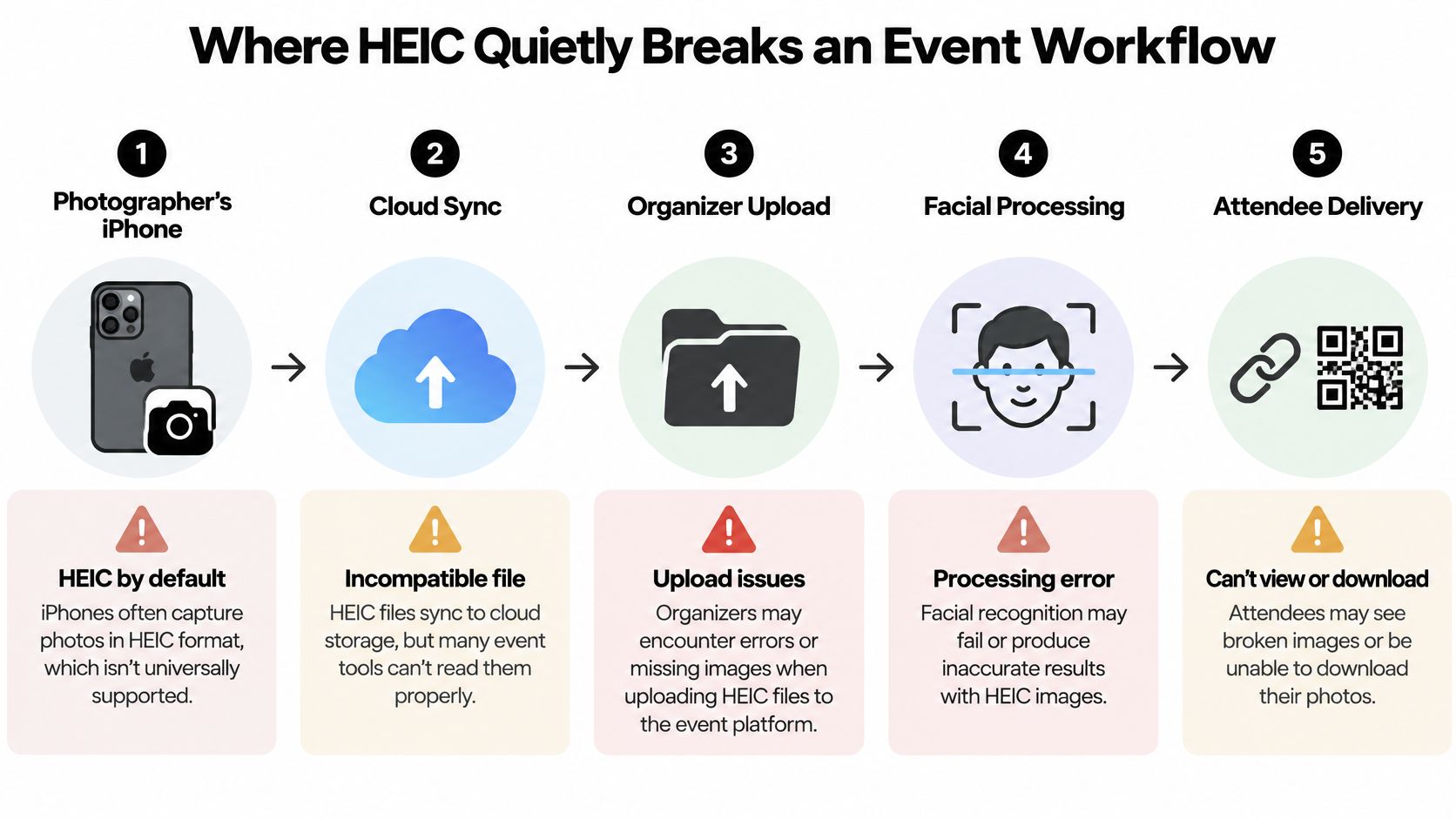
Follow one attendee photo from capture to repost and you'll see five places where format support can fail. The photographer rarely causes the problem. The weak link is usually a piece of software downstream that can't decode what the iPhone saved.
Capture and Sync
Your iPhone saves the HEIC original and syncs it to your cloud library. Everything looks fine because you're still inside Apple's ecosystem. Trouble starts when that original leaves it.
Organizer Upload and Processing
You upload a folder to a gallery tool, a shared drive, or a print service. If that system can't decode HEIF, you may get failed uploads, missing thumbnails, or files that process incorrectly. Sending a test batch through your event photo upload page before the actual event catches this while you still have time to convert.
Attendee Download
A guest opens your event photo sharing link or QR code photo gallery on a corporate Windows laptop. The download works, but the photo shows a blank icon. Microsoft notes that Windows users may need HEIF and HEVC extensions for Photos and other applications to read these files, and many managed work computers block installing them.
Reposting and Printing
Even when a guest can view the file, the next step may fail. A social scheduler, email tool, or print lab uploader built around JPG may reject the HEIC or strip it during upload.
- Viewing works but sharing doesn't: The phone reads HEIC, the scheduling tool doesn't.
- Download works but printing doesn't: The lab's uploader expects JPG only.
- One guest is fine, another isn't: Different operating systems support different subsets of the format.
Test the entire attendee journey, not just your own phone. Upload, processing, mobile retrieval, download, and reposting each need to work before you call a gallery ready.
How to Switch Your iPhone Back to JPG
If you want future photos to arrive as JPG without any conversion step, change one setting. It takes less than a minute and you can reverse it any time.
Change the Capture Setting
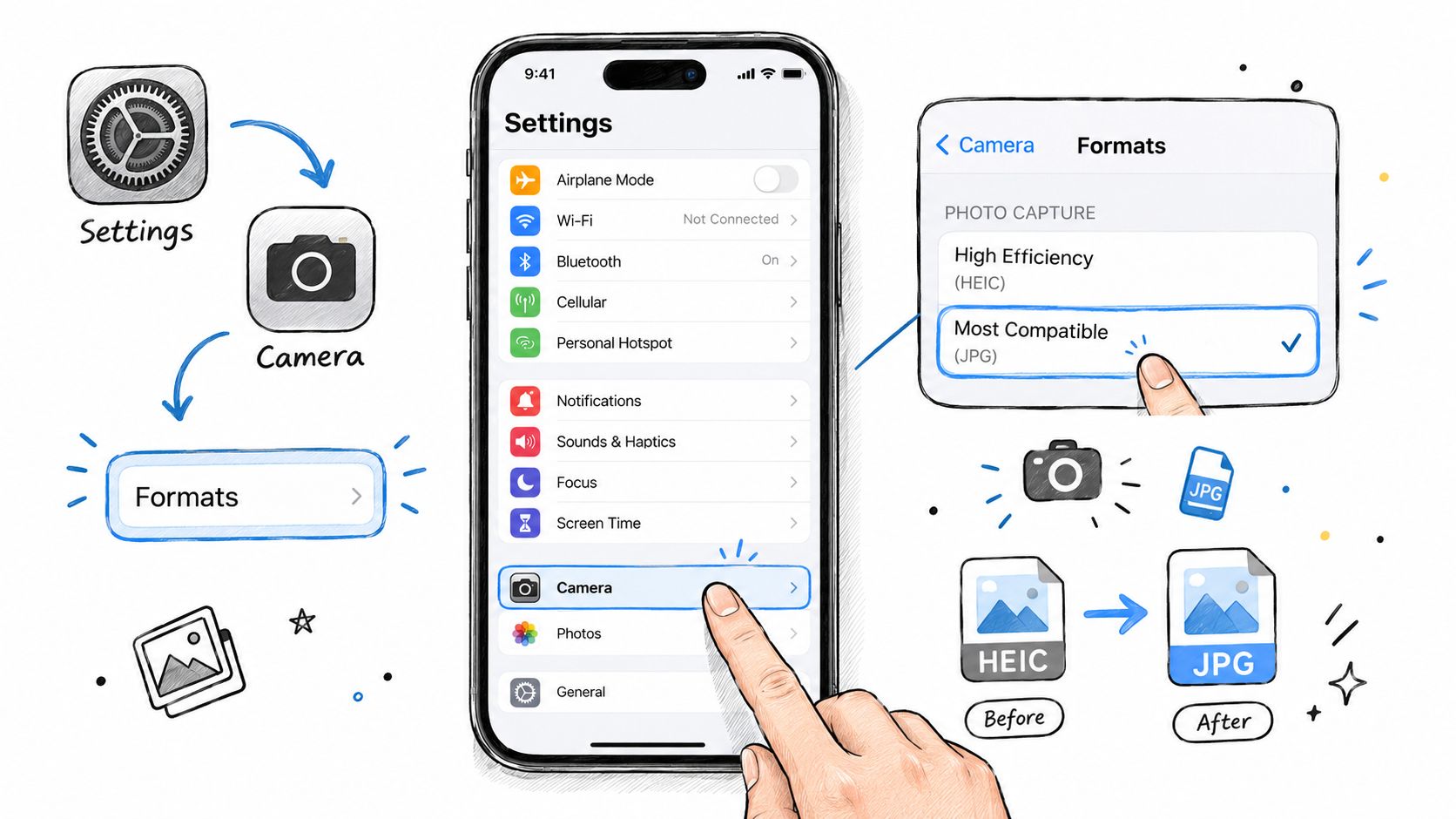
- Open Settings: Tap Camera, then tap Formats.
- Choose Most Compatible: Apple states this setting saves new photos as JPEG instead of HEIF.
- Take a test photo: Check that the new file carries a .jpg extension.
Understand the limit of that fix. The setting affects newly captured media only. Every HEIC photo already in your library stays HEIC until you convert it.
Convert Individual Photos on iPhone
For one or two images, use the Files app trick. Select the photo in Photos, tap Share, choose Copy Photos, then paste it into a folder in Files. iOS creates a JPG copy there, ready to email or upload, and your original stays untouched.
Watch the setting change and conversion steps in action before you try them on a large batch.
Batch Convert for Event Galleries
For a folder of originals, work on a computer. On a Mac, select the files in Finder, use Quick Actions, choose Convert Image, and set the output to JPEG. Preview also works through File, Export, with a quality slider for control. On Windows, open the file in Photos or Paint once HEIF support is installed, then save a JPG copy, though a dedicated desktop converter is faster for large folders.
Don't just rename .heic to .jpg. The codec inside stays HEVC, so the receiving software still can't read it and may now be confused by the mismatched name.
One more caution. Don't send identifiable attendee photos to random free online converters just because they're fast. Built in tools on your own devices keep those images under your control.
Why You Might Want to Keep HEIC After All
After all that talk about converting, here's the counterpoint. Deleting HEIC from your workflow entirely throws away real advantages, especially if you shoot events regularly.
HEIC originals are efficient to archive. A season of galas, tournaments, and alumni dinners adds up, and smaller master files mean cheaper backups and faster transfers between your phone, drive, and editing machine.
What You Give Up When You Convert Everything
Conversion to JPG recompresses the image. For a guest sharing a photo on Instagram, nobody will notice. For your master copy, the one you might re edit for a premium print or a sponsor recap next year, you'd rather start from the richest file you have.
- Editing headroom: The original preserves more image data to work with later.
- Storage efficiency: Your archive grows more slowly in HEIC than in JPG.
- Flexibility: You can always export a JPG from a HEIC, but you can't recover discarded data from a JPG.
Capture in HEIC, Deliver in JPG
The smarter question isn't which format wins. It's where conversion happens. Keep High Efficiency on the capture device so originals stay compact and complete. Then export sRGB JPG copies at delivery time, sized for what attendees do with them, which is view, download, share, and occasionally print.
That split respects both sides of your job. You protect quality and storage on your end, and your guests get files that open anywhere. The only real cost is a conversion step, and whether that step hurts depends entirely on whether you do it by hand, file by file, or let your delivery workflow handle it once for the whole gallery.
Delivering Event Photos Without Format Headaches
Manual conversion works for a dozen photos. It falls apart at event scale, when a photographer hands you a full evening of images and guests expect to find themselves the same night.
A platform built for event delivery absorbs the format problem at upload. You supply the originals, the system decodes them and prepares web friendly copies, and attendees never learn which format the camera used.
What the Guest Experiences
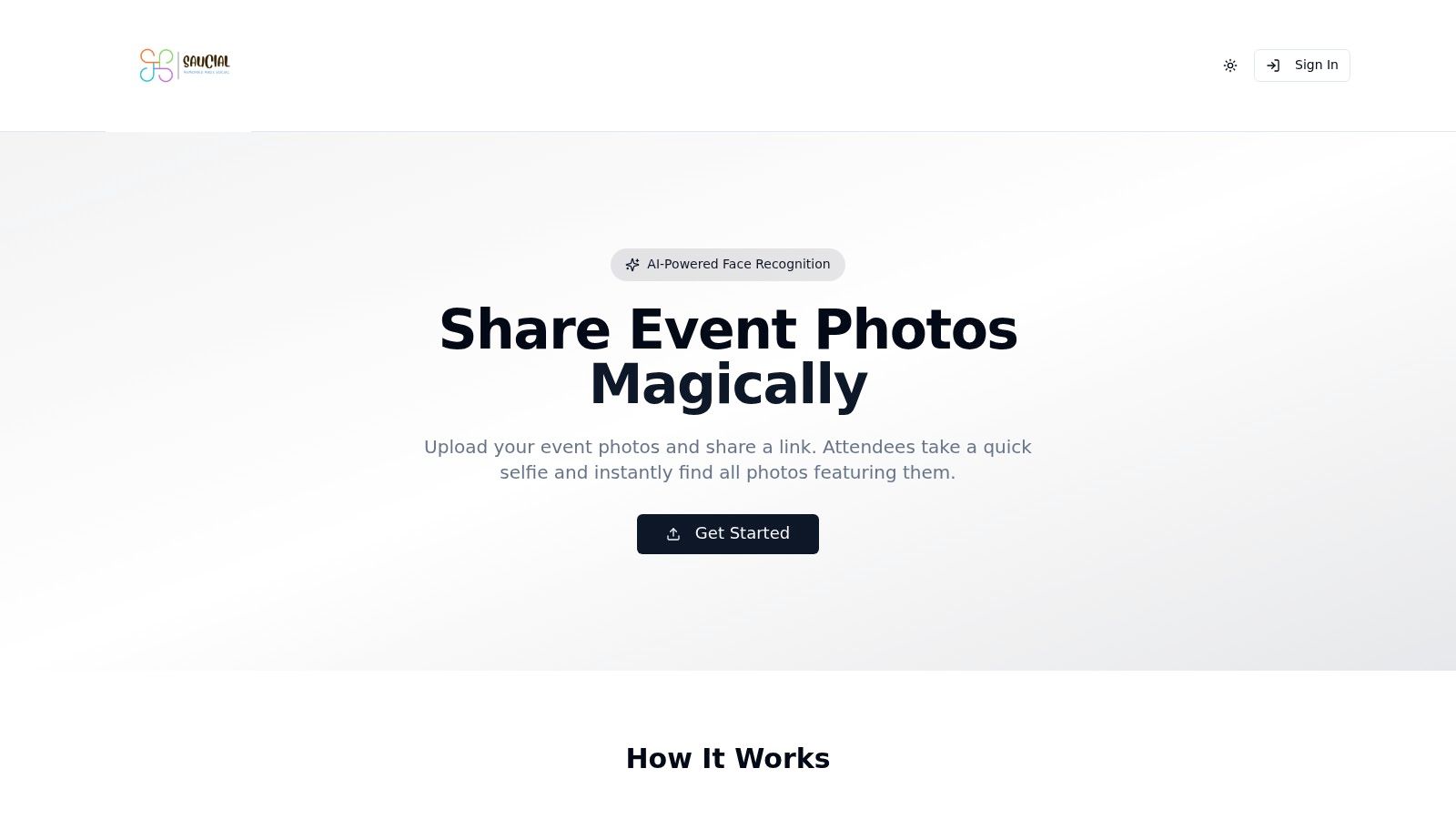
With Saucial, the organizer uploads event photos and shares one link or QR code. A guest takes a quick selfie and the selfie photo matching shows only the photos they appear in, ready to download on whatever device they're holding. That find my photos flow replaces the familiar Drive folder, where hundreds of files sit in a grid and guests give up before finding themselves.
Why Format Handling Affects More Than Convenience
Delivery format decides whether a guest can repost, print, or forward a photo at all. When that works smoothly, post-event engagement rises because people share their moments, and photographers get a clean path to photographer upsell to attendees through print sales, premium edits, or featured sets. When it fails, your team fields support messages instead.
Privacy belongs in this decision too. Attendee photos are identifiable, so conversion and distribution should stay inside tools you control, with permissions you set, rather than scattered across personal converter sites and open folders. One controlled upload beats a chain of improvised fixes, for your guests' trust and your own sanity after a long event day.
Your HEIC Game Plan Before the Next Event
Two decisions, made once, prevent nearly every HEIC headache. Decide your capture format, then decide your delivery format, and write both down for anyone helping you shoot.
- Capture choice: Turn on Most Compatible if volunteers shoot on mixed phones and simplicity matters most.
- Archive choice: Keep High Efficiency if storage and editing headroom matter more, and export JPG copies at upload.
- Test run: Send five photos through upload, download, and repost on iPhone, Android, and Windows before event day.
- Guest promise: Deliver JPG through one link or QR code, never raw HEIC originals.
If HEIC files keep slowing down your gallery handoffs, let the delivery step handle the conversion for you. Saucial turns your uploaded event photos into a private find my photos experience, where guests use one link or QR code and a quick selfie to retrieve only their images on any device. Set up your next event gallery there, upload a test batch, and check the guest experience before the doors open.