10 Best Instagram Online Filter Tools for 2026
You've got a photo that needs that familiar Clarendon punch or Valencia warmth, but you don't want to open Instagram, lose resolution, or send a client file through a social app just to get a look. That's the exact moment an Instagram online filter tool makes sense. The edit itself should take seconds. What comes next decides which tool you should pick.
A solo creator prepping one post needs speed and no signup. A designer building a carousel needs templates, type, and brand colors in the same workspace. A photographer finishing a gala or trade show set needs something else again, consistent treatment across dozens of faces, plus a private way to deliver only approved images to the people in them.
That distinction matters more since Meta shut down its Meta Spark platform and removed third party AR effects in January 2025, while first party effects and ordinary editing filters stayed available, a change covered in SocialBu's guide to creating Instagram filters after Spark. Outdated advice about publishing a custom branded face effect won't help you now. The practical replacements are native effects, external editors, and branded frames or templates you control.
Below, the tools are ordered by production need, from one-click presets to full browser editors, with honest trade-offs on privacy, output, and effort.
1. iotools.cloud Instagram Filters
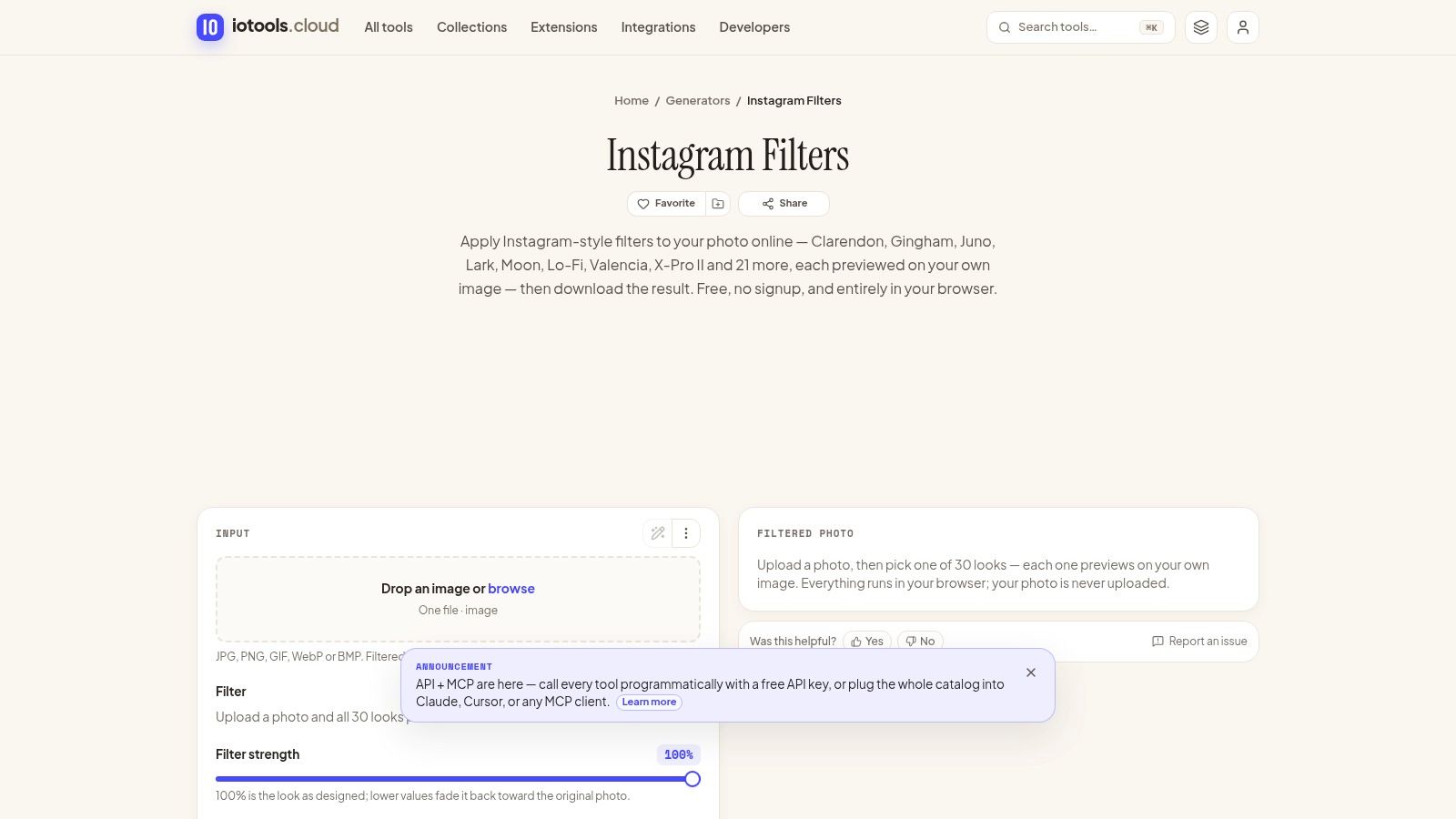
Start here if you want the classic look and nothing else. iotools.cloud Instagram Filters is a free browser page built for a single job, applying an Instagram online filter to one photo and downloading it.
What you actually get
- 29 named filters: Clarendon, Gingham, Juno, Valencia, Lo-Fi, X-Pro II and other familiar names.
- Live previews and strength control: You can dial a look back instead of accepting it at full intensity, plus compare before and after.
- Broad file support: JPG, PNG, GIF, WebP, and BMP.
The site says processing happens in your browser and exports retain full resolution. There's no signup and no watermark, which makes it ideal for a quick personal post or a fast client preview.
The limits are obvious. It handles one photo at a time, and the filters recreate Instagram style looks rather than using Instagram's own color tables, so expect close, not identical. For an event, treat it as a treatment tester. Pick one look, note the strength, then apply that same recipe consistently before you upload to a delivery flow like Saucial's photo upload workspace. Don't let every attendee apply a different preset later if feed cohesion matters.
2. Pixelixe Instagram Filters
Pixelixe Instagram Filters sits one step past a preset page. You get Instagram style effects, but you can keep working in the same browser editor instead of exporting and starting again elsewhere.
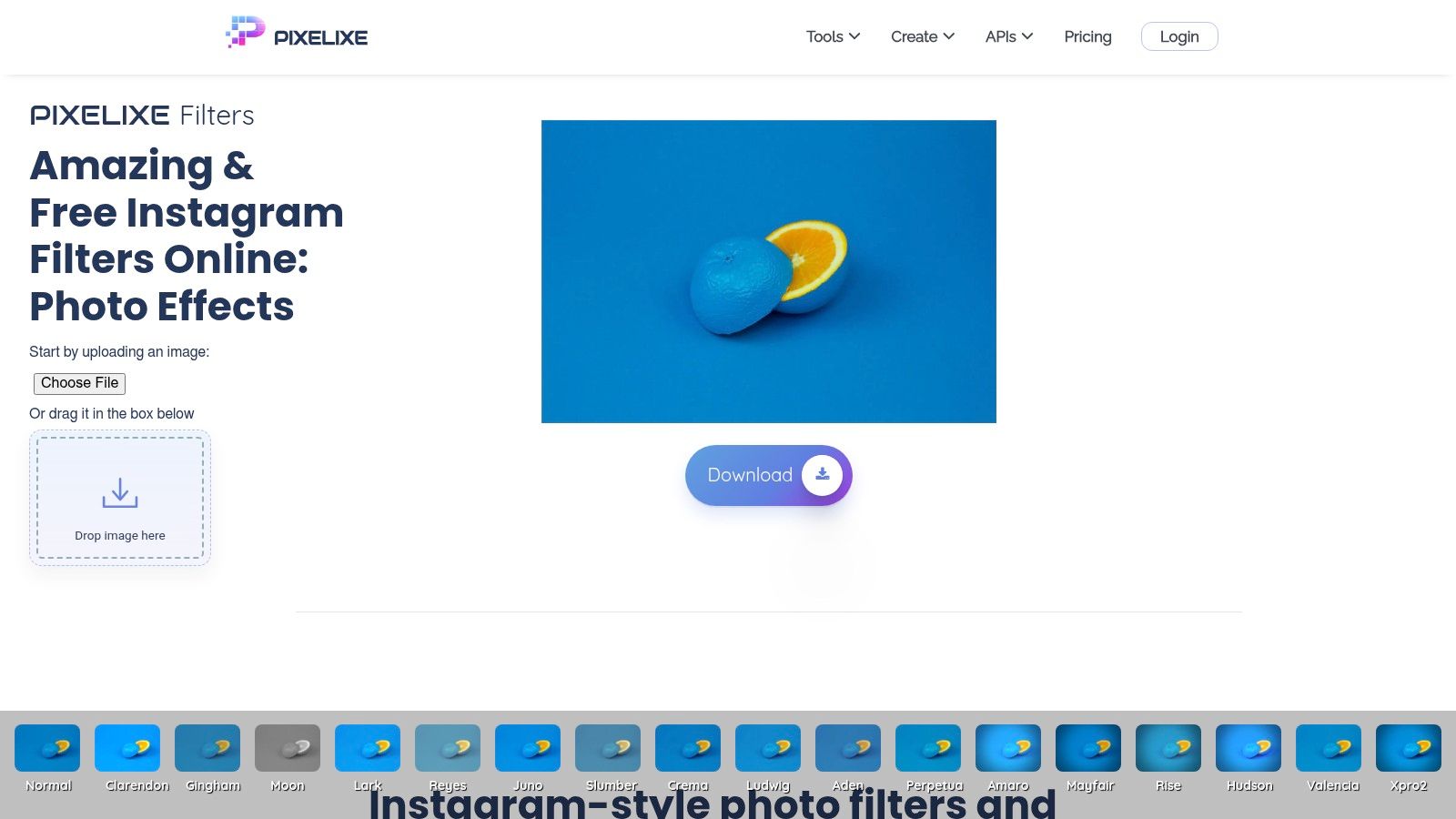
Alongside presets you'll find brightness, contrast, saturation, blur, and color controls. Add text or a logo, crop, and resize for a story, reel cover, or feed format. That path from filtered photo to finished branded graphic is Pixelixe's real selling point. The filter page is presented as usable without an account, which keeps friction low for occasional jobs.
Pixelixe also offers a Photo Filter API. For a small team automating sponsor frames or repeatable treatments across a content pipeline, that's a meaningful difference from manual editors. Check it carefully before you build on it, because public API pricing isn't clearly stated on the page.
Where it falls short, there's no clear filter by filter list to judge against the classic Instagram lineup before you upload. If you only want Juno at half strength and out, this is more tool than you need. If you're moving filtered images toward an event photo sharing link, finish branding here first, then hand off through Saucial's upload flow for event galleries so attendees receive the approved version, not their own reinterpretations.
3. Canva Photo Editor and Photo Effects
Pick Canva when the filtered photo is only one element of the post. Canva Photo Editor lets you apply adjustable filters, then add text, graphics, and templates without leaving the workspace.
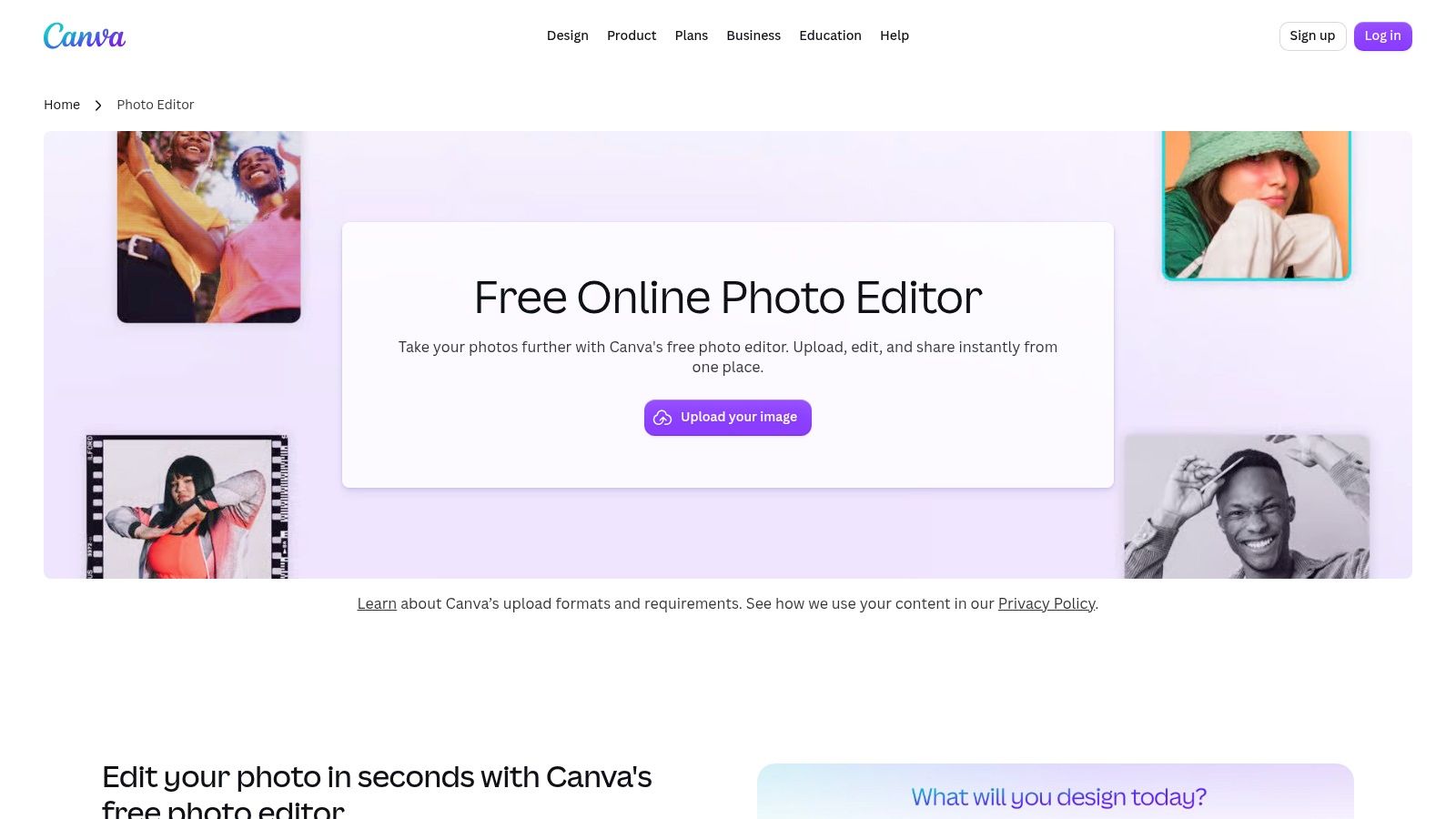
You can tune brightness, warmth, texture, and color alongside the preset itself. That control helps when a preset looks right on a portrait but too warm on a sponsor step and repeat with white backdrop. Set the treatment once in a template and your team can repeat it for speaker announcements, recap carousels, and thank you posts.
Practical rule: Lock the filter, fonts, and sponsor logo in one Canva template. Consistency comes from the template, not from asking five people to remember a preset name.
Canva describes the photo editor and filters as free to use, while some advanced features sit behind a paid plan. That's a fair trade for most social teams. The cost is navigation. You'll click more than you would in a filter only tool, and Canva isn't trying to replicate exact Instagram presets.
For events, Canva is strong for pre and post event graphics, not attendee delivery. Build the branded frame here, export approved assets, and manage who receives what through your gallery controls, starting with Saucial's gallery settings.
4. Adobe Express Photo Filters
Adobe Express Photo Filters is the polished middle ground. You get one click filters, an intensity slider, and an easy path into a larger social design, all with Adobe's clean interface.
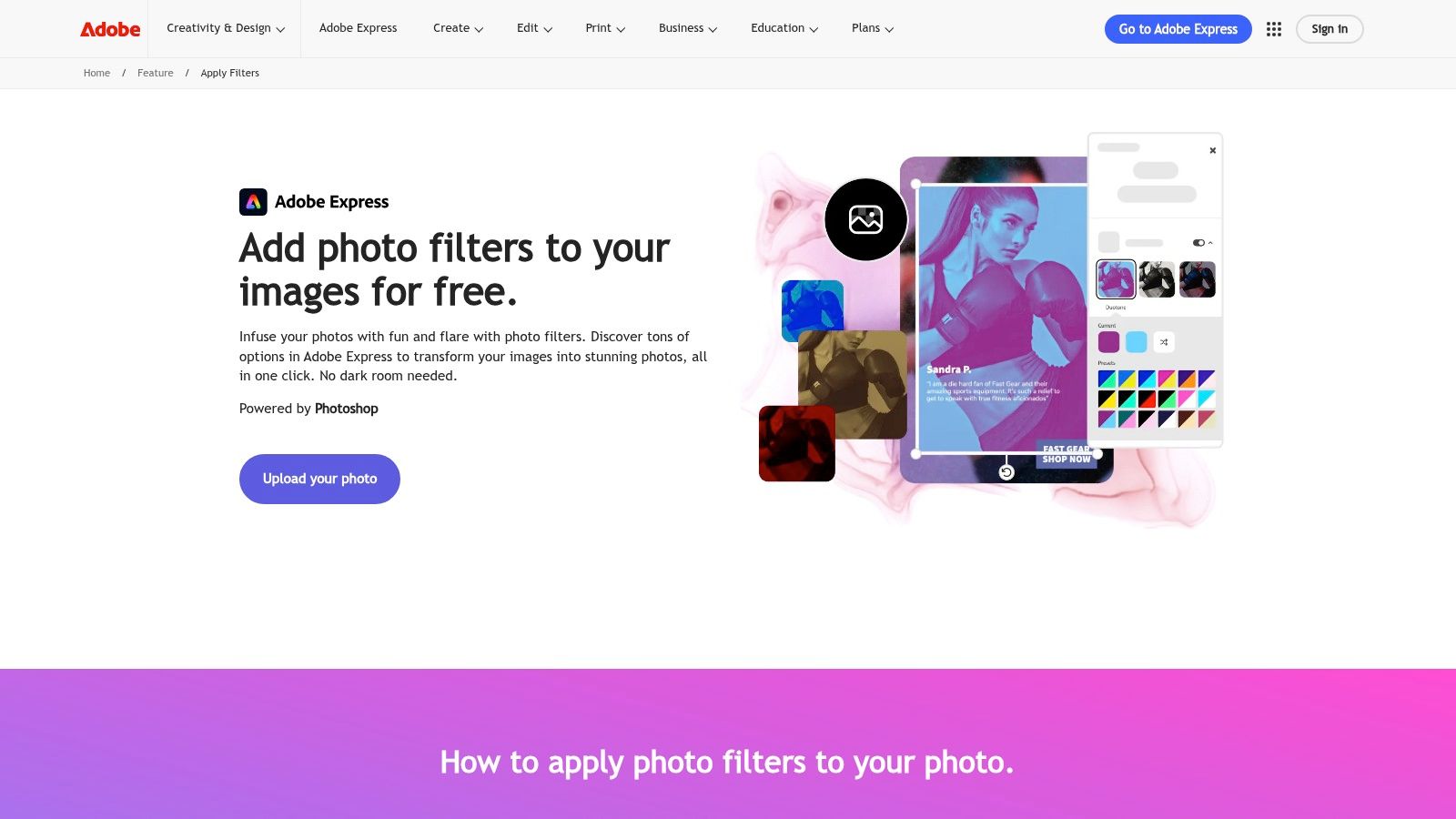
That intensity slider deserves emphasis. Most preset failures aren't about choosing the wrong filter. They're about applying the right one too hard, blowing highlights on skin or crushing shadows in a dark venue. Pull the slider back, keep faces readable, and the image still reads as professionally finished.
Express works on web and mobile, and its free plan includes filters and standard editing tools. Premium features and assets may require a subscription, so a team already paying Adobe will get more from it than a casual user testing the waters.
Don't choose Express if you want exact Instagram presets by name, because that's not how it's presented. Choose it when a filtered event photo needs to become a LinkedIn graphic, story, or sponsor thank you in minutes. There's more editor here than a minimal filter page, but less clutter than a full design suite. If that finished asset needs controlled attendee access afterward, sign in through Saucial's organizer authentication rather than posting the full set publicly.
5. BeFunky Photo Effects
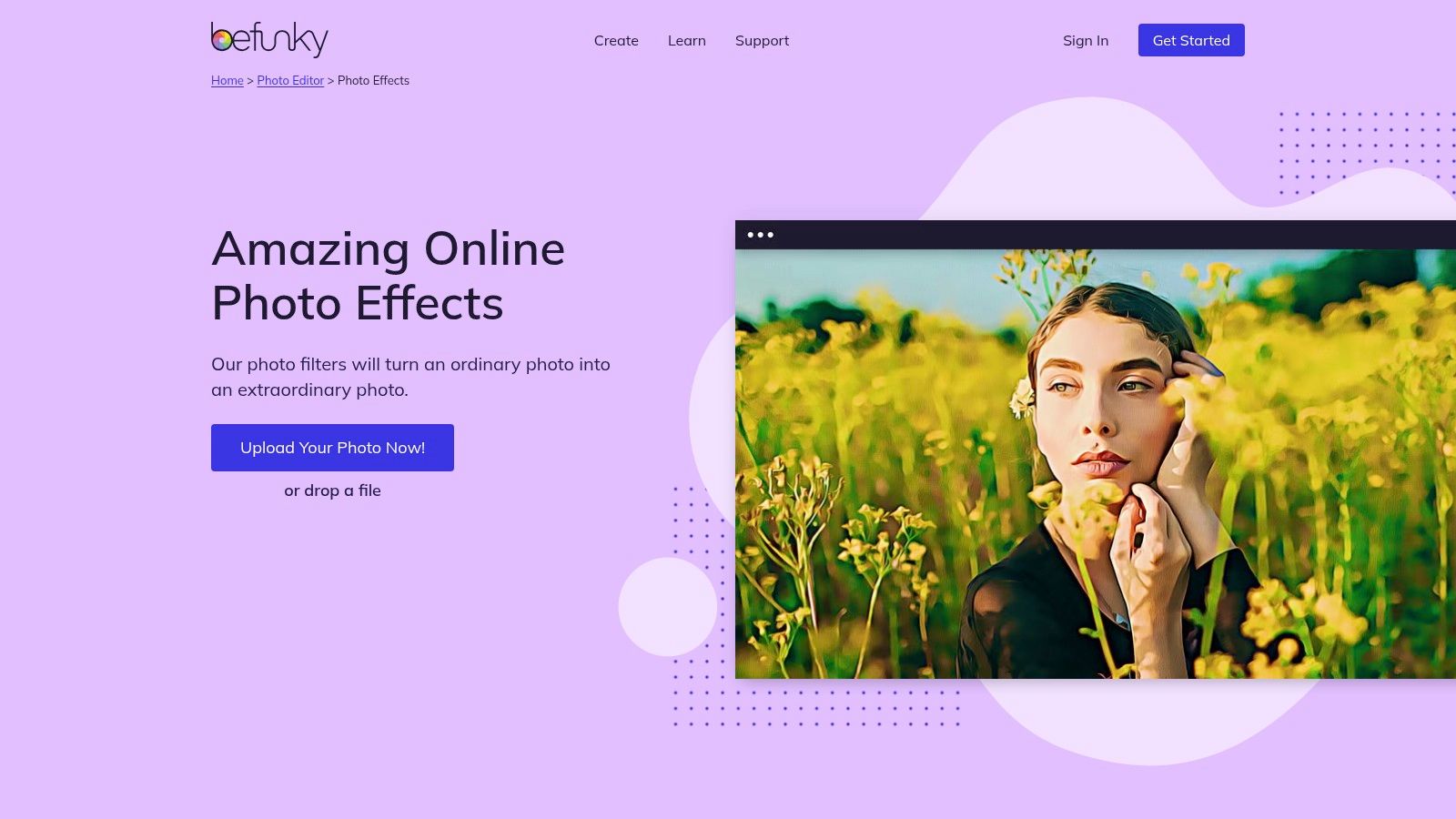
Some jobs need more than a color grade. BeFunky Photo Effects is built for people who want to experiment, with cinematic, vintage, black and white, lens flare, and artistic effects you can adjust and layer.
Where layering helps
- Stackable effects: Combine a soft vintage base with a subtle texture instead of hunting for one perfect preset.
- Broader editing tools: Subject isolation and background removal sit in the same editor.
- Creative range: Hundreds of effects and filters give you room to build a campaign look that doesn't resemble everyone else's Clarendon post.
That range is also the risk. If you need one familiar Instagram online filter before a deadline, sorting through hundreds of options slows you down. Some tools may require a paid plan, so test your exact workflow to export before committing a client job to it.
My recommendation is specific. Use BeFunky for hero images, festival posters, and themed gala graphics where a distinctive treatment carries the asset. Don't use heavy artistic effects across an entire attendee gallery. Faces need to stay recognizable for people finding themselves later, and overprocessed skin or obscured features work against selfie photo matching and simple human recognition alike.
6. Fotor Online Photo Editor
Fotor Online Photo Editor suits the photo that needs fixing as well as filtering. It's a general editor, so effects sit beside lighting, color, and exposure adjustments, portrait tools, text, stickers, frames, and collage creation.
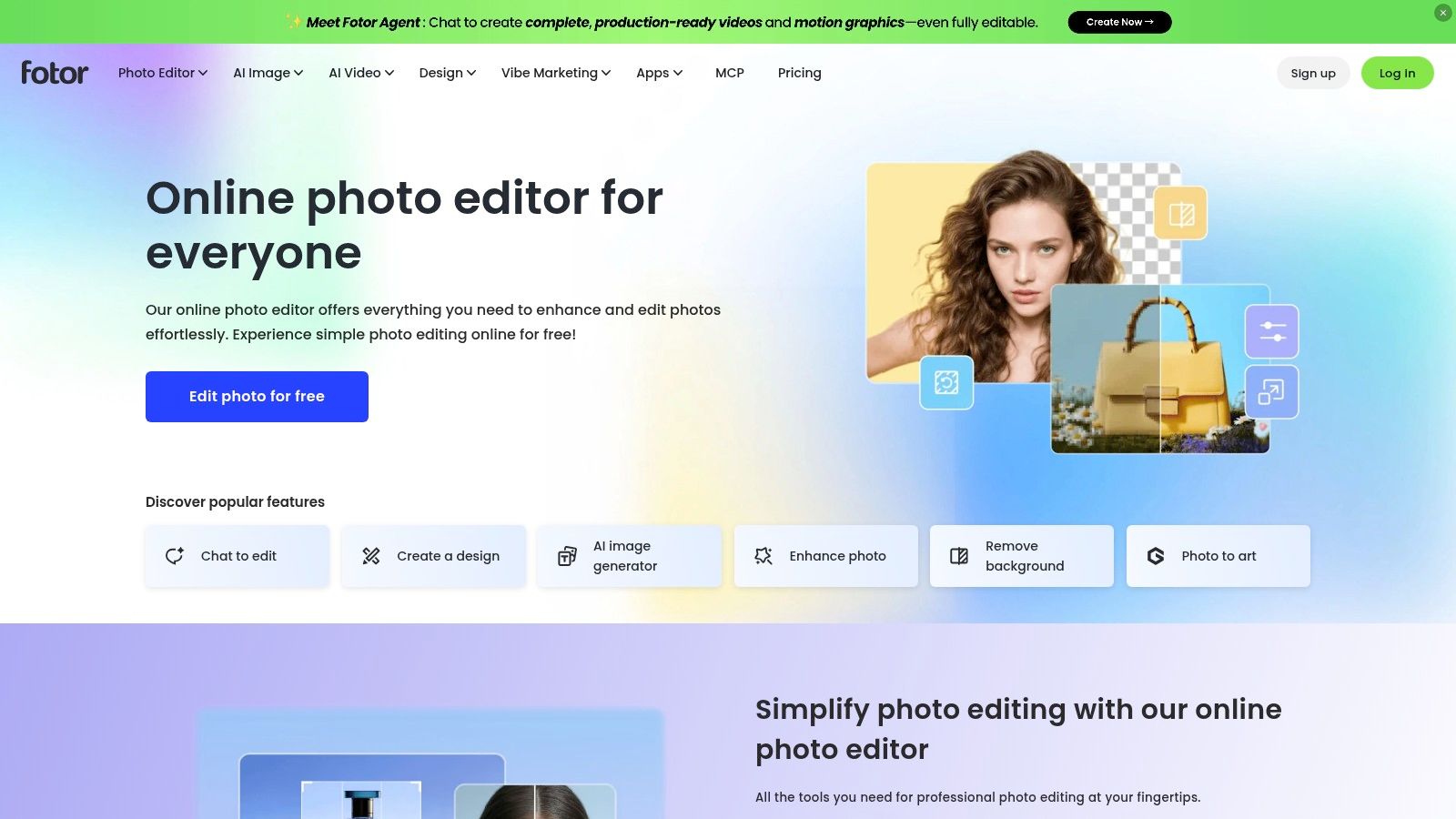
That combination helps with real event files. A trade show portrait may need exposure lifted before any preset looks right. A team collage for a sports tournament recap may need frames and names added. Fotor handles those finishing jobs in the browser or on mobile, and it offers a free editing plan, with advanced features in Pro and Pro+ plans.
Be clear about what you're giving up. Filters are less directly organized around classic Instagram names, so matching a specific Lark or Moon look by memory takes trial and error. You'll also hit paid tools sooner if you lean on advanced retouching.
Use Fotor when your workflow is correct, retouch, filter, assemble. Skip it when your workflow replicates a named preset across a set. For a consistent gallery, write down the adjustments you used on the first approved image and repeat those settings manually. Without that discipline, a general editor produces ten slightly different versions of the same idea.
7. Pixlr Online Photo Editor
Pixlr Online Photo Editor is for the person who opens a preset tool, immediately wants a mask, and gets frustrated. It's a browser editor with filters and effects plus layers, masks, retouching, and image adjustments, and it doesn't require desktop installation.
That depth solves specific problems a global filter can't. You can protect skin tones while warming the background, clean up a distracting sign at a venue, or composite a logo lockup properly instead of dropping a sticker on top. Export tools are built in, so the file can go straight to social or client review.
The interface asks more of you. Someone who has never worked in layers will take longer here than in Adobe Express or Canva, and Pixlr isn't organized around Instagram named presets. Free plan limits and feature access can vary, so confirm export options on your account before a deadline job.
If you need to edit part of the photo differently from the rest, stop shopping for presets. You need layers and masks.
For event teams, Pixlr works well at the approval stage. One editor creates the master treatment on a few representative images, portraits, stage shots, low light crowd photos, and that becomes the reference. Don't hand this level of control to every volunteer uploading from the floor.
8. Photopea Online Photo Editor
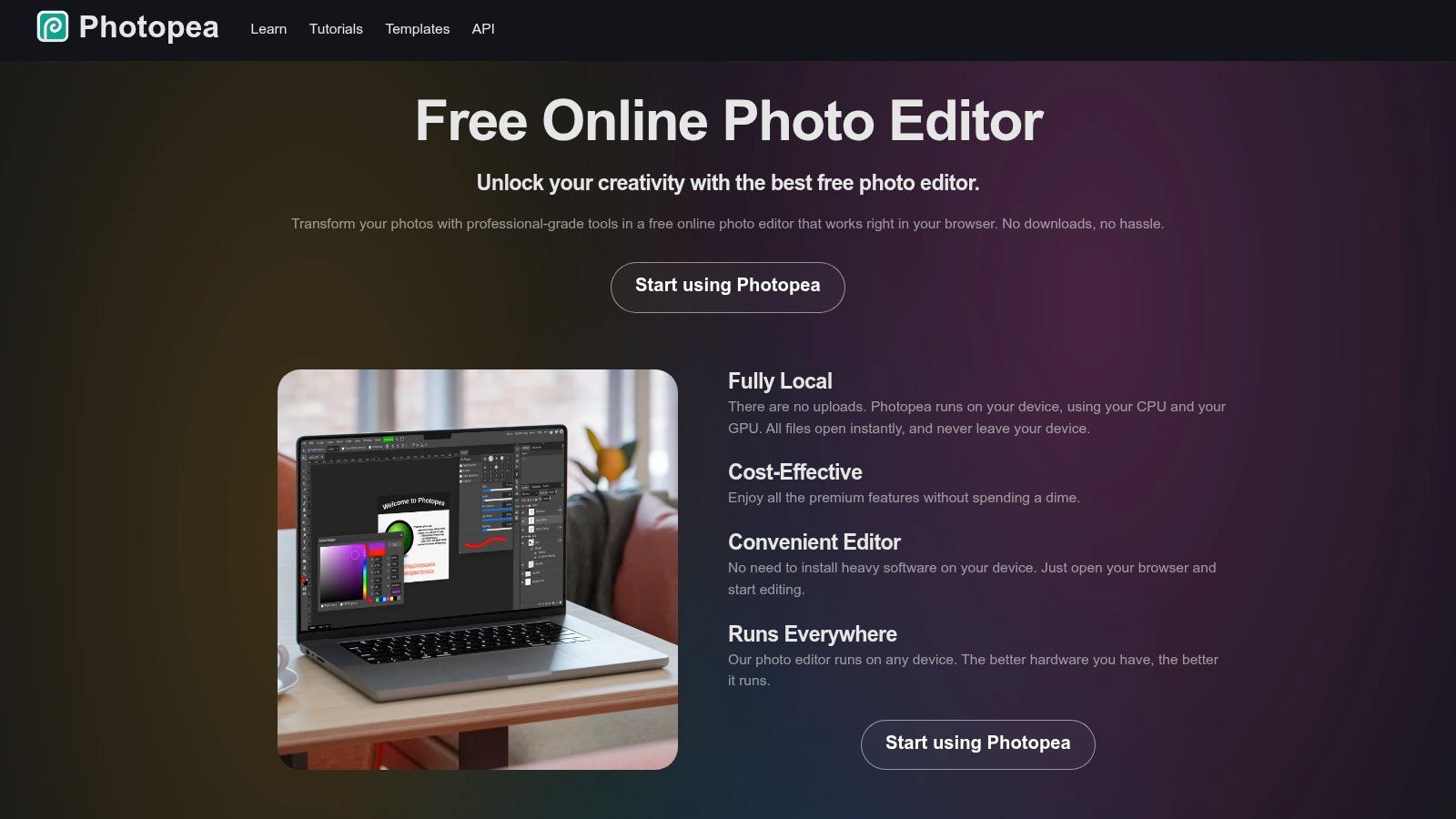
Photopea is the heavyweight on this list. It's a browser based, Photoshop style editor with image adjustments, filters, layers, masks, and editable Smart Filters when you're working with Smart Objects. It also supports many formats, including PSD.
Best fit and worst fit
- Best fit: A designer sends a PSD sponsor frame and you need to place event photos into it accurately.
- Best fit: Non destructive edits you may revisit after client feedback.
- Worst fit: A quick Valencia style look on your phone between sessions.
Photopea says images are processed locally in the browser. That matters when you're handling unreleased campaign work or identifiable attendee photos and don't want unnecessary uploads. Local processing doesn't remove your consent obligations, but it does reduce exposure during editing.
There's no curated list of Instagram style presets waiting for you. You'll build the look with adjustments yourself, which experienced editors will see as control and beginners will see as homework. If your team already speaks Photoshop, Photopea is the most capable Instagram online filter alternative here for building a repeatable, branded treatment from scratch. If not, it's overkill.
9. WebToolsCenter Instagram Filters
WebToolsCenter Instagram Filters takes a mood first approach. Instead of only chasing classic names, it groups 45+ filters into mood categories, with curated presets, favorites, manual adjustments, and before and after comparison.
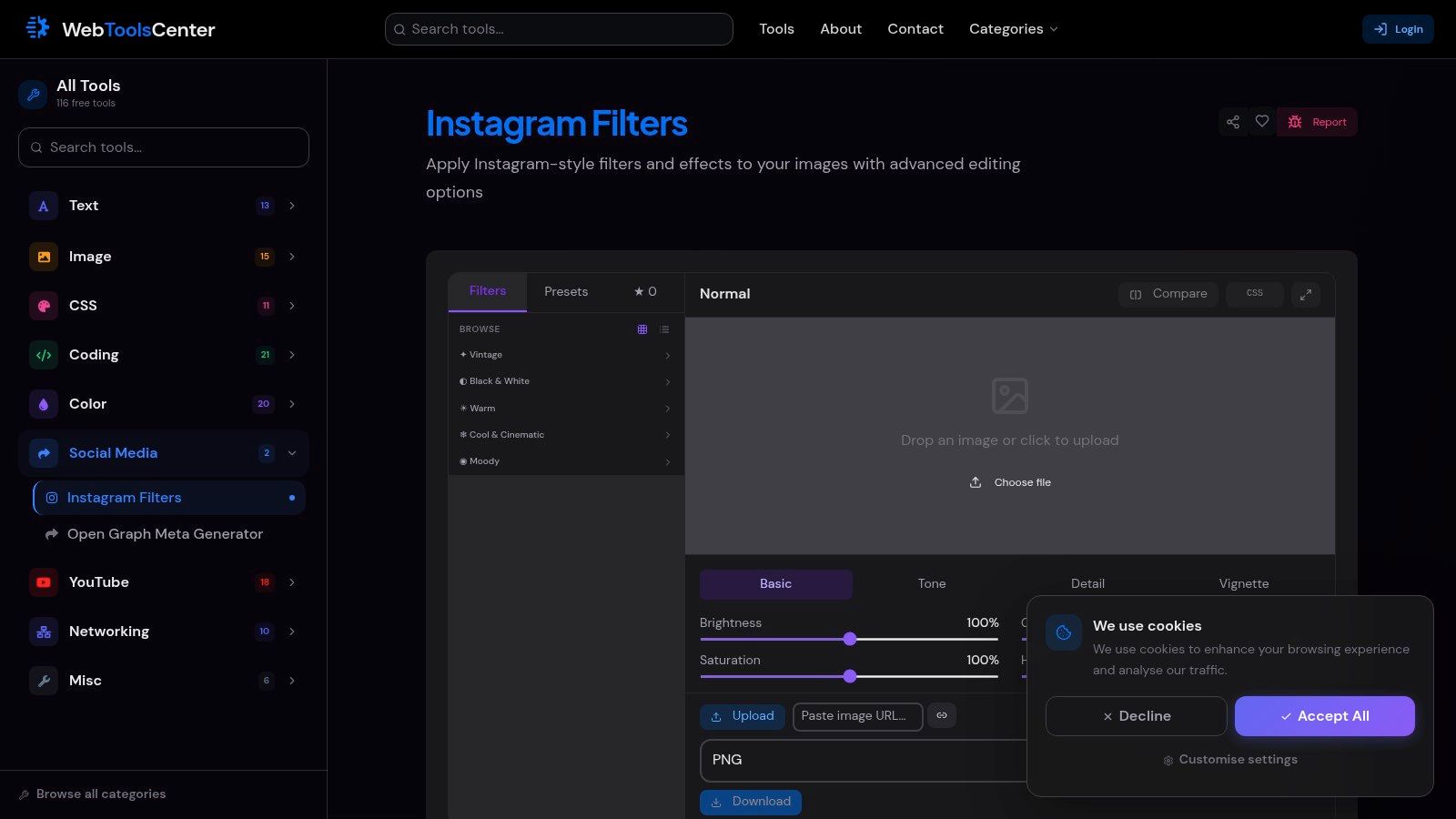
That organization helps when your brief is a feeling rather than a filter name. A fundraiser wants warm and elegant. A youth sports recap wants punchy and clean. Browse by mood, save favorites, then fine tune with manual controls before exporting as PNG, JPEG, or WebP. WebP is a practical bonus for event websites where file weight affects load time.
Compare mode is the feature to use deliberately. Check skin tones against the original at full view, not just the thumbnail preview. Mood presets can shift color casts that look stylish small and wrong large.
The trade off is choice and track record. Sorting a broad library takes time, and available search information doesn't establish independent user review or reputation details, so I wouldn't make it the sole editor for sensitive client files without testing. For public facing content you've already approved for release, it's a useful, flexible preset explorer.
10. FowTools Instagram Filters Online
FowTools Instagram Filters is purpose built for the classic lineup. If you searched for Clarendon, Gingham, Moon, Lark, Valencia, or X-Pro II by name, this is the most direct match on the list.
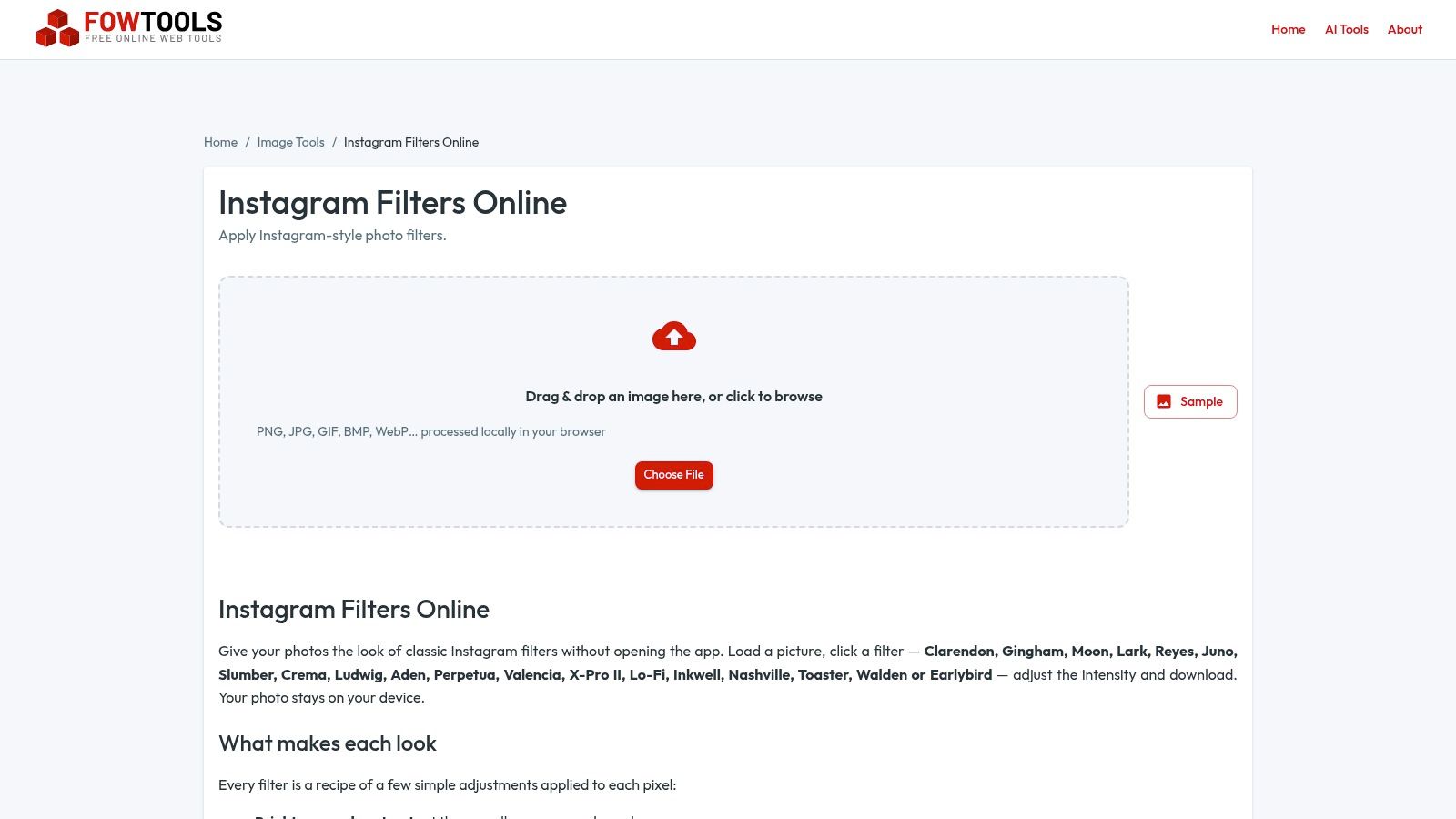
You get adjustable filter strength, a download workflow, and related image tools. FowTools says images are processed locally in your browser, which is a sensible design for a lightweight utility. Its own guidance suggests using one consistent filter across a set for a cohesive feed, and that advice holds up in practice for event recaps too.
Don't expect advanced editing. There's limited evidence of deeper features, and it isn't built for a multi step design workflow with layers, templates, or sponsor composites. That's fine. Narrow tools stay fast because they refuse extra jobs.
Use FowTools to settle on a house look for a gala fundraiser photo gallery or a tournament weekend, then apply that same preset and strength to every image you release. Consistency is what makes a set look intentional when attendees share their photos side by side. Variety makes it look like nobody was in charge.
Top 10 Instagram Online Filter Tools Compared
| Tool | Core Features | Experience & Quality | Best For | Price & Value | Standout |
|---|---|---|---|---|---|
| iotools.cloud, Instagram Filters | 29 named presets; strength control; common image formats | ★ Quick, one-photo workflow | 👥 Fast Instagram-style edits | 💰 Free; no signup or watermark | ✨ Browser-local processing stated by the site |
| Pixelixe, Instagram Filters | Presets, manual controls, text, logos, crop, resize; API | ★ Versatile, but more tools to navigate | 👥 Branded content and automated workflows | 💰 Pricing for API not clearly stated | 🏆 Filter-to-branded-graphic workflow |
| Canva, Photo Editor | Filters, image controls, templates, text, graphics | ★ Polished, broad design workspace | 👥 Social posts and marketing graphics | 💰 Free editing; some features require a paid plan | ✨ Combines photo editing with design |
| Adobe Express, Photo Filters | Dozens of filters, intensity slider, editing tools, templates | ★ Simple controls with design options | 👥 Quick edits and social graphics | 💰 Free plan; premium features and assets may cost extra | ✨ Web and mobile availability |
| BeFunky, Photo Effects | Hundreds of effects; layering; background and subject tools | ★ Strong creative range | 👥 Users seeking artistic treatments | 💰 Some tools may require a paid plan | 🏆 Stackable effects and broad editing tools |
| Fotor, Online Photo Editor | Effects, portrait edits, adjustments, text, frames, collages | ★ Useful finishing and retouching options | 👥 Photo touch-ups and collages | 💰 Free plan; Pro and Pro+ for advanced features | ✨ Combines effects with portrait tools |
| Pixlr, Online Photo Editor | Filters, layers, masks, retouching, adjustments | ★ More control, with a steeper learning curve | 👥 Users wanting deeper browser-based edits | 💰 Free-plan limits and access may vary | ✨ Layers and masks without desktop installation |
| Photopea, Online Photo Editor | Filters, adjustments, layers, masks, Smart Filters; PSD support | ★ Powerful but less beginner-friendly | 👥 Advanced edits and PSD workflows | 💰 Pricing not specified in the provided details | 🏆 Browser-based Photoshop-style editing |
| WebToolsCenter, Instagram Filters | 45+ mood-based presets, favorites, adjustments, comparison | ★ Broad selection with fine-tuning | 👥 Users exploring multiple filter styles | 💰 Pricing not specified in the provided details | ✨ Before-and-after comparison |
| FowTools, Instagram Filters Online | Classic named presets, strength control, download | ★ Lightweight, focused workflow | 👥 Quick classic Instagram-style edits | 💰 Pricing not specified in the provided details | ✨ Browser-local processing stated by the site |
Build a Consistent Permission-Aware Photo Workflow
Choosing an Instagram online filter tool is the easy decision. Use iotools.cloud or FowTools for a fast named preset, WebToolsCenter when you're browsing by mood, and BeFunky or Fotor when you want creative effects or finishing tools. Move to Canva, Adobe Express, or Pixelixe when the photo becomes a branded post. Reserve Pixlr and Photopea for layered work where part of the image needs different treatment from the rest.
Enjoyment is not a minor detail in that choice. In a 2025 structural equation study of 1,251 respondents, 82.02% used augmented reality filters weekly and 12.07% used them daily, while 95.52% reported actively using Instagram. Perceived enjoyment was the strongest predictor of satisfaction, followed by ease of use, and satisfaction strongly predicted loyalty at β = 0.973, p < 0.001. Treat those figures as directional rather than universal, since a large sample isn't necessarily globally representative. The practical lesson stands, keep effects optional, fast, and fun, and don't let them complicate finding the actual photo.
Sharing behavior points the same way. In a peer reviewed study combining surveys and focus groups, 69.0% of valid respondents in one survey used AR filters at least monthly, Instagram was the preferred platform, and perceived entertainment was the primary driver of playability, satisfaction, and electronic word of mouth. So use a lightweight event effect or frame as a participation trigger that encourages UGC from events, then route people to controlled delivery. The filter creates the moment. It shouldn't be your distribution system.
Privacy is where event teams need the most discipline. A 2025 academic review of Instagram self moderation found 21 self moderation tools covering privacy, filtering, and time management, while noting platform definitions and controls can be difficult to interpret. Don't transfer that ambiguity to your event. Separate consent to be photographed from consent to public posting, tagging, facial matching, and promotional reuse. Explain selfie photo matching in plain language, offer a non face based way to retrieve photos, avoid default public galleries, and publish a clear deletion and opt out path. Face landmark tracking in a playful camera effect is not the same thing as facial recognition for retrieval, and your notice should say so plainly.
That gives you a workflow that answers how to share event photos with attendees with control. Apply one approved treatment across the gallery, keep faces recognizable, add branding through frames or templates you own, and deliver through a QR code photo gallery or private event photo sharing link. A face recognition event gallery with a clear find my photos flow, such as Saucial, can give each guest only their images without exposing the full set, which supports post-event engagement while respecting permission. Photographers also gain a cleaner photographer upsell to attendees path, from premium edits to event approved branded frames, without fielding endless requests to locate individual pictures.
After you've locked your filter and approved your set, use Saucial to upload the finished gallery and share one link or QR code so attendees can take a quick selfie and instantly find only the photos they appear in, with no app for guests to install. It's a cleaner way to pair consistent, on brand edits with private delivery for galas, festivals, trade shows, and sports tournaments.