Share Photos with Family Sharing: A Practical Setup Guide
The wedding gallery lands in the family chat, and someone's already asking, “Where are the photos of the kids?” One relative can't open the album, another assumes everyone can delete pictures, and the couple has no idea whether a link is private. Getting photos to family shouldn't require a second event just to explain the first one.
A good share photos with family sharing workflow starts before invitations go out. Decide who can see the photos, who can add or remove them, and what happens when someone leaves. Then choose the right tool: Apple Family Sharing, iCloud Shared Photo Library, Google Photos Partner Sharing, or an organizer-controlled event link.
The Moment Every Family Photo Plan Breaks
The photographer sends the gallery after a birthday or wedding. One person uploads everything to a shared album, drops the link into the family chat, and considers the job done. Then the questions begin: Which album has the group shots? Can Grandma save her favorites? Why can an in-law see the children's photos? Can someone remove a picture they don't want shared?

The gallery dump fails for three practical reasons. First, discovery takes work. A large folder asks every relative to scroll, search, and recognize themselves. Second, permissions are often unclear. A link can be easy to open without making it clear who can download, contribute, edit, or delete. Third, the person sharing the photos may not have checked whether everyone pictured is comfortable with the audience.
Those problems are familiar because mobile photo sharing has long been about distribution, not just taking pictures. In a nationally representative Pew Research Center survey conducted in May 2011, 73% of U.S. cell-phone owners said they used their phones to take pictures, and 54% said they sent photos or videos to other people. Pew reported that photo and video sharing had risen from 36% in May 2010. Pew Research Center's survey of cell-phone use shows why immediate, phone-friendly access is a practical starting point, not a nice extra.
But convenience doesn't settle the harder questions. Apple Family Sharing, iCloud Shared Photo Library, Google Photos Partner Sharing, and an organizer-controlled event link each give people different levels of access and control. Pick based on your group's needs, then test the workflow before sharing the gallery.
Choosing the Right Sharing Model for Your Family
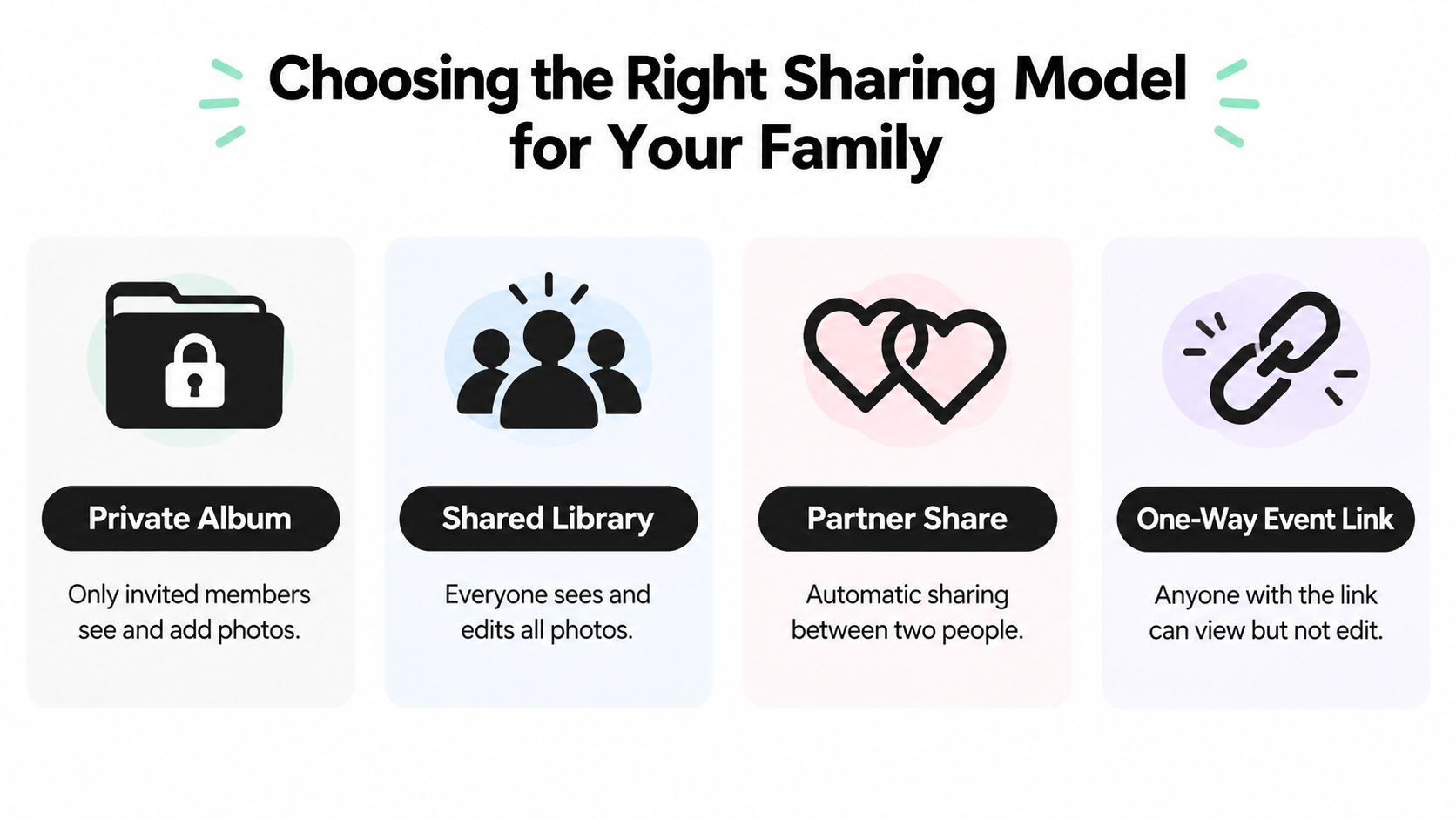
Don't choose a sharing tool just because everyone already has an account with that company. Start with the question that matters most: should family members only view and save photos, or should they also contribute, edit, and delete them? A private album, shared library, partner share, and event link are different permission arrangements, not interchangeable names for the same thing.
A useful privacy anchor is that 52% of parents said other parents shared too much about young children, according to Pew Research Center's survey on parents' attitudes toward digital technology. More sharing isn't automatically better. A family album should fit the audience, especially when children or sensitive moments are involved.
Sharing Models Compared
| Sharing Model | Who Can View | Who Can Edit/Delete | Who Controls Invites | Best For |
|---|---|---|---|---|
| Private album | People the owner invites | Depends on the service and album settings | Usually the album owner | A selected set of photos for a defined group |
| Shared Library | All participants | Participants can add, edit, and delete shared content in Apple's Shared Photo Library | The organizer controls the invitation | Ongoing collaboration among people who trust one another |
| Partner Share | One selected partner receives photos according to the chosen settings | Controls depend on the service and sharing arrangement | The account holder starts or stops sharing | Automatic photo sharing between two people |
| One-way event link | People who can access the link | Usually the organizer or photographer manages the source gallery | The organizer or gallery owner | Guests who need to view or retrieve event photos without managing a shared library |
Apple Family Sharing isn't the same as a shared photo library. Apple says Family Sharing can share an iCloud+ subscription while each person's photos and files remain private unless they're explicitly shared. In an iCloud Shared Photo Library, participants can view, edit, and delete shared content, and contributed photos move into the shared library. The library organizer manages invitations and is responsible for its storage. Apple's Family Sharing overview helps clarify why a shared subscription shouldn't be mistaken for a shared collection.
Before you invite anyone, settle three points: who approves new members, who can remove content, and what each person can keep if they leave. For one-off celebrations, a view-focused link may be simpler than handing relatives shared editing rights. For event organizers comparing an attendee gallery with a family library, Saucial's event photo sharing platform provides a link-based way to help guests find photos without making them participants in a shared library.
Setting Up Apple Family Sharing and a Shared Library
Apple's two sharing features solve different problems. Family Sharing connects family accounts to shared services such as an iCloud+ plan while keeping personal files separate unless someone chooses to share them. iCloud Shared Photo Library is for people who want a common photo collection and are comfortable with participants contributing to it.
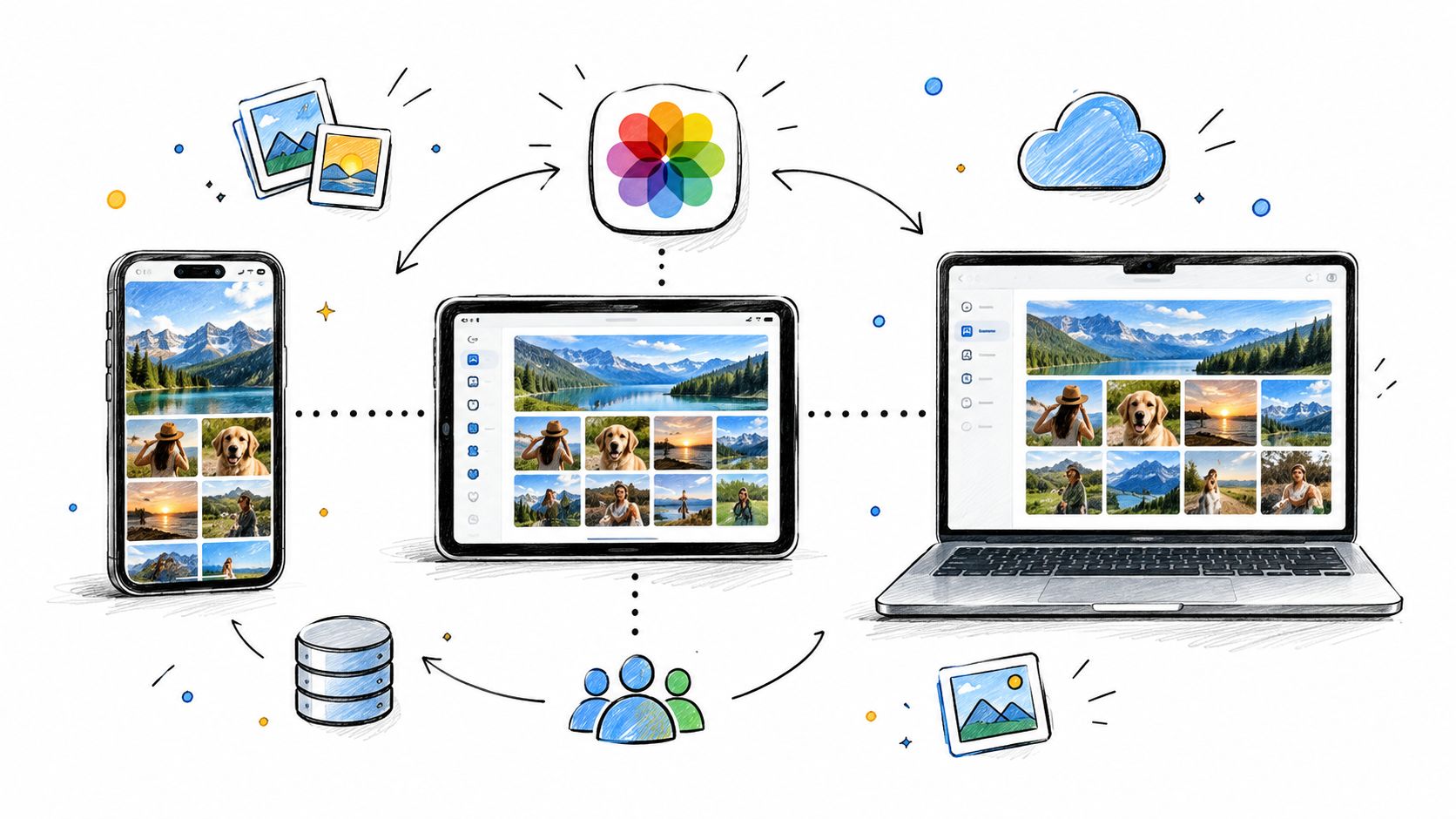
To create a Shared Photo Library, each participant needs a compatible Apple device running iOS 16.1, iPadOS 16.1, or macOS Ventura or later, with iCloud Photos turned on. The organizer can invite up to five other people, for six participants total, and provides the iCloud storage for the shared content. Apple's Shared Photo Library instructions detail the requirements and setup options.
Set the boundaries before inviting relatives
On an iPhone or iPad, open Settings, go to Photos, and choose Shared Library. Follow the setup prompts to select participants and decide whether to move existing photos or add photos later. If you're setting it up on a Mac, use Photos settings to find the Shared Library setup flow.
That move-versus-add choice deserves attention. Photos moved into the Shared Library leave your Personal Library, and participants can change or delete shared items. Don't use it as a casual dumping ground for family photos that should remain under one person's control. If you're unsure, start with a small, non-sensitive selection and review what everyone can access.
You can create a Family Sharing group separately in Apple's account settings, then choose which services or subscriptions to share. Keep the purpose clear: using Family Sharing for a subscription does not mean you've granted relatives access to your personal photo library.
Before the real invite: Test the arrangement with a secondary Apple Account. Check what it can view, edit, and delete, then verify that the organizer can remove a participant.
A privacy setting can reduce exposure, but it can't guarantee who ultimately sees a photo. The FTC advises getting consent from people pictured and limiting access to people you know and trust. Use those principles before inviting relatives, and especially before adding children's pictures.
A short video walkthrough may help you locate the controls on your device. Treat the interface as a guide, then verify the current settings on your own account.
Setting Up Google Photos Partner Sharing and Shared Albums
Google Photos gives you two useful patterns: Partner Sharing for ongoing, selected automation and Shared Albums for a particular event or collection. Don't treat them as the same thing. Partner Sharing is suited to a trusted two-person arrangement; an album link works better when you're distributing a bounded set of photos to a group.
Use Partner Sharing selectively
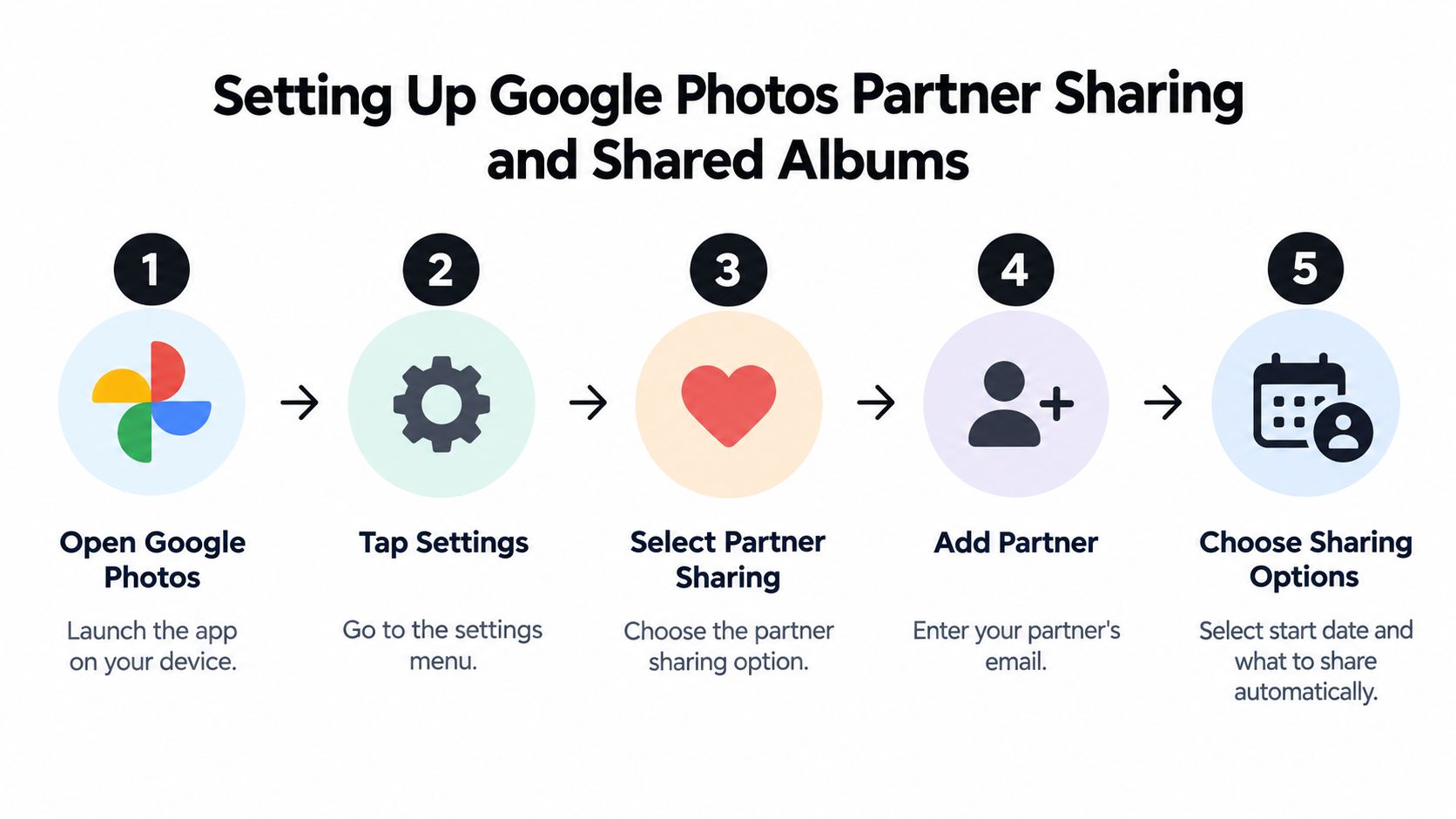
Open Google Photos and go to Settings, then choose Partner Sharing. Add the partner's account and choose the starting point and sharing criteria available in your account. Google Photos can share backed-up photos automatically, including photos filtered by person or date. You can also stop Partner Sharing through its settings.
The convenience is real, but automatic distribution can put the wrong photo in the wrong hands. Google Photos may group images by person, and a mistaken grouping can include a child, guest, or private moment you didn't intend to share. Google Photos' Partner Sharing guidance explains the feature; it doesn't remove the need to review what your settings are sending.
Use an album for a one-off gathering
For a birthday, reunion, or holiday, create a Shared Album, add the selected photos, and invite people or share the album link. Before sending it, check whether recipients can add photos and whether link access is appropriate for the group. A family chat may be a reasonable place for a link to ordinary snapshots, but it isn't a substitute for checking the audience.
Face grouping needs a fallback. NIST's evaluation of 189 algorithms from 99 developers found demographic differences, with false-positive rates in some one-to-one tests varying by factors of 10 to 100, depending on the algorithm. NIST's face-recognition evaluation also distinguishes a false positive, matching different people incorrectly, from a false negative, missing a match between the same person.
If Google Photos groups the wrong person or misses a child in a group shot, correct the grouping and review the shared album manually. Keep a manual browsing route available. Face grouping can speed up finding pictures, but it shouldn't decide by itself who gets access.
Privacy Controls Most Guides Skip
Automatic sharing handles delivery. It doesn't ask whether the person in the photo agreed to share it, whether a child should be included, or whether a family member expected the image to stay private. For that reason, I'd rather review a queue before sharing than let person-based automation distribute everything by default.
Parents share for connection: among parents who shared information about their children on social media, 76% said making it easy to share children's experiences with friends and family was a major reason. But Pew's research on parents' sharing practices also found that some parents worried their children might object in the future. A family gallery should make connection easy without assuming that every photo belongs in every audience.
Use a review-first routine
Before a gallery goes live, separate the photos into clear audiences. A “close family” set might include children or personal moments; an “everyone invited” set can hold the event images that are appropriate for the wider group. Don't let a broad group link become the default for both.
For a family library or event gallery, agree on these controls before sharing:
- Confirm consent: Ask people pictured before distributing sensitive or personal images. For children, use a parent or guardian's judgment and avoid sharing more than the occasion requires.
- Review automated matches: Correct mistaken face groupings and inspect anything person-based sharing has already sent.
- Offer an opt-out: Don't require selfie photo matching to browse an event gallery. Provide manual browsing or event filters.
- Set access and retention rules: Decide who can open the gallery, when access ends, and how someone can request removal.
- Make removal straightforward: Give participants a clear route to report a mistaken match or ask for a photo to be taken down.
For event galleries, avoid default public indexing and don't expose one attendee's private retrieval results to another. A QR code photo gallery can make access easy at a venue, but the organizer still needs to define who can view and what happens after the event. Keep those choices visible in your Saucial privacy and account settings before distributing the gallery.
Running an Event Gallery Without Losing Anyone
At a school reunion, the photographer may capture portraits, candid conversations, and group shots across the venue. A folder dump makes each guest do the same work: open the gallery, scroll through everything, and guess which pictures include them. A well-managed event photo sharing link gives attendees a faster way to find their own moments while keeping the organizer in charge of the gallery.
Start by deciding what the organizer wants to distribute and what the photographer needs to deliver. A single photographer can upload one set; a multi-camera team should agree on a shared collection and review process before publishing. Then place a link in the follow-up email and a QR code at the venue, so guests can reach the gallery from their own phones without installing an app.
Make retrieval easy without treating matching as proof
Selfie photo matching can help a guest find photos featuring them, but it should be a retrieval aid, not an identity verdict. Offer manual browsing or event filters for guests who don't want to submit a selfie, and provide a way to report an incorrect match. Keep private retrieval limited to the photos associated with that attendee, rather than exposing another guest's gallery.
A practical workflow looks like this:
- Upload and review: The photographer or organizer adds the event photos and checks the collection before sending it out.
- Choose distribution: Share the link by email or text, and display the QR code where guests can scan it.
- Give guests a choice: Let attendees browse manually or use selfie photo matching to find their pictures.
- Set the experience: Decide whether guests can access photos free, buy prints, or request premium edits.
- Handle requests: Make it easy to report a mismatch or ask for a photo's removal.
No app requirement reduces friction for guests, but a link can also be forwarded. That trade-off makes organizer-controlled access rules, clear consent, and a removal process important. For a real event workflow, Saucial's upload process supports uploading event images and distributing a gallery through a shareable link, with a QR code option for guests.
Photographers can also treat delivery as a direct-to-attendee channel rather than stopping at an organizer handoff. If paid prints or edits are part of the event, decide that before launch and explain the options plainly. Don't make access to a guest's own event photos depend on agreeing to a paid upgrade.
Your Share-Photos-With-Family-Sharing Checklist
Use this checklist before the next family gathering or event. It keeps the setup focused on the questions that cause trouble later: who sees the photos, who controls the collection, and whether everyone understands the arrangement.
- Pick the model: Use a private album or one-way link for a selected audience, a shared library when people should collaborate, and partner sharing only when ongoing automation fits the relationship.
- Name the audience: Decide who's invited and whether children's photos belong in a separate, more restricted collection.
- Write down the controls: Confirm who can invite others, edit or delete photos, and revoke access.
- Set the exit plan: Decide what someone can keep when they leave and what happens to shared content they contributed.
- Test before launch: Open the gallery from a secondary account and verify the actual permissions.
- Review before automating: Check face groupings and partner-sharing rules before they send photos automatically.
- Measure useful outcomes: Track delivery rate, gallery-open rate, and the share of recipients who find and save at least one photo. Invitation counts alone don't show whether people found their pictures.
If someone leaves a shared group, don't assume every service handles their access or copies the same way. Check the platform's departure rules, remove access when appropriate, and agree in advance what happens to photos already shared. With Apple Shared Photo Library, participants can choose whether to keep a copy of shared content or only what they contributed when they leave, while the organizer has control over removing participants or deleting the library. Confirm the current behavior before you invite the group.
Saucial gives organizers and photographers a shareable event gallery with a link or QR code, plus selfie-based photo retrieval for attendees who want to find their pictures. If you're planning a family celebration, reunion, or other high-sharing event, visit Saucial to see whether that workflow fits your audience and privacy requirements.