Photo Kiosk Software Compared: Features, Costs and Fit

Photo kiosk software is a continuous-operation system, not just a way to run a booth. Kodak's Picture Maker rollout shows the core task is longstanding: give customers direct control over selecting and printing photos. By 2002, Kodak had deployed more than 18,000 kiosks in the United States and more than 30,000 worldwide. More than 70% could print from digital-camera memory cards, according to coverage of Kodak's Picture Maker rollout. The same coverage reported Kodak's expectation that 80% of its units would offer full digital services by the end of 2002, and its estimate that the network could serve about 17 million digital still-camera owners.
The operating test remains simple: can a guest search, select, and receive a picture without staff intervention? For event organizers and photographers, the harder comparison is what happens when the system is under pressure. A stalled upload can leave guests waiting; a face index that cannot be deleted creates a privacy obligation; a blocked print queue can cut into sales. These risks affect both consent and revenue, yet they are easy to miss when comparing software by its visible features alone.
Photo Kiosk Software Types Side by Side
Photo kiosk software falls into five types. The type you pick decides where guests choose photos, whether faces are matched, and who earns the sale.
| Software type | Typical setup | Where guests pick photos | Photographer revenue path | Best fit |
|---|---|---|---|---|
| Self-serve print kiosk software | Touchscreen, dye-sublimation printer, card reader | On the kiosk, printed on site | Print sales at the kiosk | Retail, malls, high-traffic venues |
| Photo booth capture software | Camera, laptop or tablet, printer, backdrop | Printed strip or digital link after the session | Booth rental fee plus prints | Weddings, parties, corporate activations |
| Event photo sharing platform | Upload from any laptop; guests use their own phones | Selfie matching or QR gallery on the guest's device | Direct-to-attendee downloads, prints, featured sets | Galas, tournaments, trade shows, alumni dinners |
| Shared cloud folder | Folder plus manual sharing link | Browsing a full folder | Sales through an outside store | Small, low-attendance events |
| Custom-built kiosk stack | Developer time, custom hardware, hosting | Whatever the build allows | Full control, full cost | Large venues with an IT team |
What separates the rows
Two facts separate these rows, and neither is "which app has more filters." Selection either happens on a venue touchscreen or on the guest's phone. Money either lands with the photographer, the organizer, or a store you don't control.
Three differences matter more than the brand name on the installer.
- Selection device: A touchscreen at the venue keeps the sale on site. A phone shifts retrieval to an event photo sharing link, a QR code photo gallery, or selfie photo matching, and it removes the printer from the critical path.
- Face matching: Only some rows identify a person in the frames. That choice creates biometric duties the folder row never has.
- Who gets paid: Print sales, a booth rental, direct downloads, an outside store, or a fully owned stack. The path decides the margin before the first guest arrives.
Vendor pricing is rarely published in a form you can compare. Leave the cost cell open until quotes use the same fields: guest cap, idle periods, device count, and who keeps attendee sales.
Match the row to guest count, whether you need payment on site, and which privacy rules the venue must meet. Read the hardware baseline only if the setup includes on-site equipment. Don't rank the rows. A mall kiosk and a 40-person dinner are different products.
How a Photo Kiosk Workflow Moves Images to Guests
Throughput comes from decoupling the guest in front of the camera from everything that happens after the shutter. A photo nobody can retrieve earns nothing, no matter how fast the capture felt.
The six stages below only work if they don't wait on each other. The diagram shows the handoff from capture through archive.
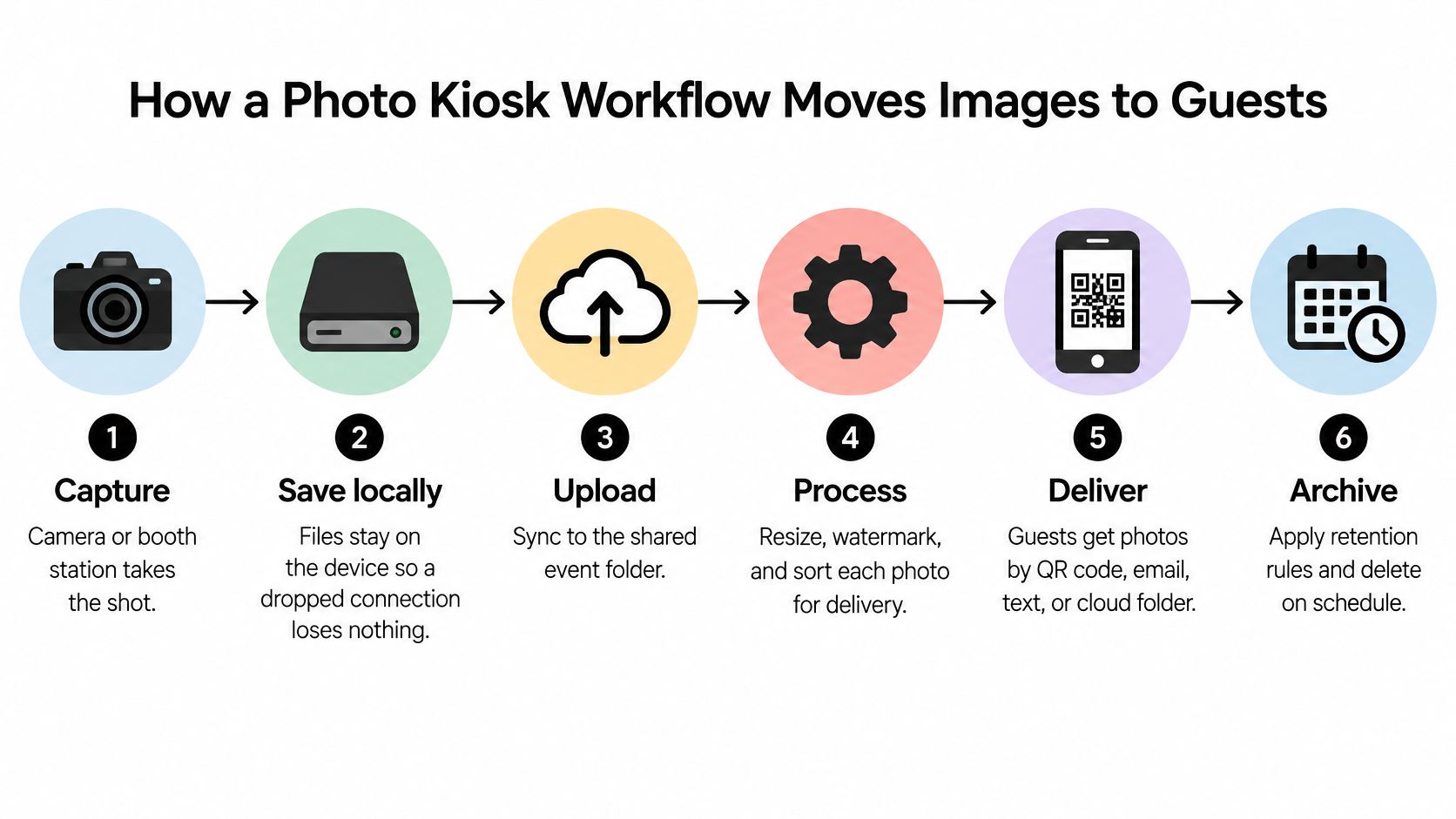
- Capture: A camera or booth station takes the shot. This stage should end when the file exists, not when a print pops out.
- Save locally: Files stay on the device. A dropped connection loses nothing if this write finishes before any network call.
- Upload: Sync to a shared or synchronized event folder. This is the stage that fails first on shared venue Wi-Fi.
- Process: Background work resizes, watermarks, indexes faces, or builds the gallery. It must not freeze the capture screen.
- Deliver: Guests retrieve on a kiosk, a phone link, email, text, or a QR gallery. The next guest should already be posing.
- Archive: Retention rules run on a schedule, including files that sat in a queue and synced late.
What the queue has to remember
Non-blocking print and delivery queues share that event folder. Every job needs a state: pending, completed, failed, or retryable.
A paper jam is the clean example. The print moves from pending to failed, then to retryable. The queue keeps that guest's order. The next job keeps moving, so the line doesn't stop for one roll of paper. The same states apply to a text that didn't send and a gallery image that didn't index.
Practical rule: Time from upload to a successful retrieval matters more than the speed of any single capture.
The first failure point at most events is the upload on shared venue Wi-Fi, not the camera. Rehearse with the network switched off. Confirm the local cache holds, then restore the link and watch queued jobs finish. A background upload step should keep capture alive while cloud work waits.
A short walkthrough of a live station makes the queue behavior easier to judge than a feature list.
Hardware and Network Baseline for Continuous Operation
A kiosk can capture photos and still fail as an event system if its display is hard to read, its computer stalls, or uploads stop when venue connectivity drops. Plan for continuous operation and guest privacy, rather than treating the station as a consumer photo app. A public-event kiosk baseline provides a starting point for assessing the display, computer, and network.
| Component | Planning baseline | What to confirm |
|---|---|---|
| Touchscreen resolution | Choose a resolution that keeps guest prompts and selection controls legible at the intended viewing distance | Test the interface on the actual screen |
| Touchscreen brightness | Match brightness and anti-glare treatment to the venue's lighting | Check the manufacturer's datasheet and test under event lighting |
| Panel life | Confirm the rated operating life with the manufacturer | Compare the rating with expected event hours and service plans |
| Processor | A current Intel Core i5 or AMD Ryzen 5 class processor is a practical starting point | Test capture, processing, and uploads running together |
| Memory | 8 GB RAM is a planning starting point | Check performance with the chosen software and background tasks |
| Storage | An SSD with room for local caching, such as 256 GB, can help during connectivity loss | Estimate image volume and retention needs |
| Graphics for AI effects | A dedicated GPU may be needed for on-site AI transformations | Check the software vendor's requirements; a plain gallery may not need one |
| Network connection | Prefer dedicated Ethernet or a separate event network where available | Confirm upload performance at the station |
| Available bandwidth | Size capacity for concurrent uploads, not a single test photo | Measure under expected event conditions; requirements vary with image size and traffic |
| Backup connectivity | Consider cellular backup where venue service is uncertain | Test failover and queued uploads before doors open |
Three choices that fail in venues
The panel. A screen that looks clear in a showroom can be difficult to read under ballroom lights or daylight. Test touch targets in the actual setting, and confirm brightness and panel-life ratings against the vendor datasheet rather than treating one figure as universal.
The computer. Processor, memory, storage, and graphics needs depend on the workload. An Intel Core i5 or AMD Ryzen 5 class processor, 8 GB of RAM, and an SSD provide a planning starting point, not a guarantee. Test capture alongside background processing. A dedicated GPU is relevant when AI effects run on site, and not merely because the station builds a gallery.
The network. Upload capacity depends on image size, guest volume, and competing traffic. A dedicated Ethernet connection or separate event network can reduce reliance on guest Wi-Fi, while cellular backup may help if venue service fails. Keep local caching available so capture can continue during an outage. Background uploads and gallery preparation should not block the guest-facing station. Set retention and access controls for locally cached images, including files that upload after the event.
What to test before you pay
A single demo capture will not reveal how the system handles a busy event. Test the actual kit under realistic conditions:
- Camera reconnection: Unplug and reconnect the camera, then check how quickly live view returns.
- Upload throughput: Send a burst of representative images, not one photo.
- Touchscreen response: Try the controls under the venue's lighting.
- Printer integration: Confirm the queue can recover from a jam.
- Automatic restart after power loss: Interrupt power during a session and check recovery.
- Kiosk lock-down: Verify guests cannot access the desktop or other files.
- Recovery from network failure: Disconnect the network, continue capturing, reconnect, and confirm cached files sync.
A QR-only gallery running from a laptop may not need a printer or a locked-down public station. Match the test plan to the setup, but keep network recovery and image handling in scope wherever photos are stored or delivered.
Recognition and Delivery Options Compared
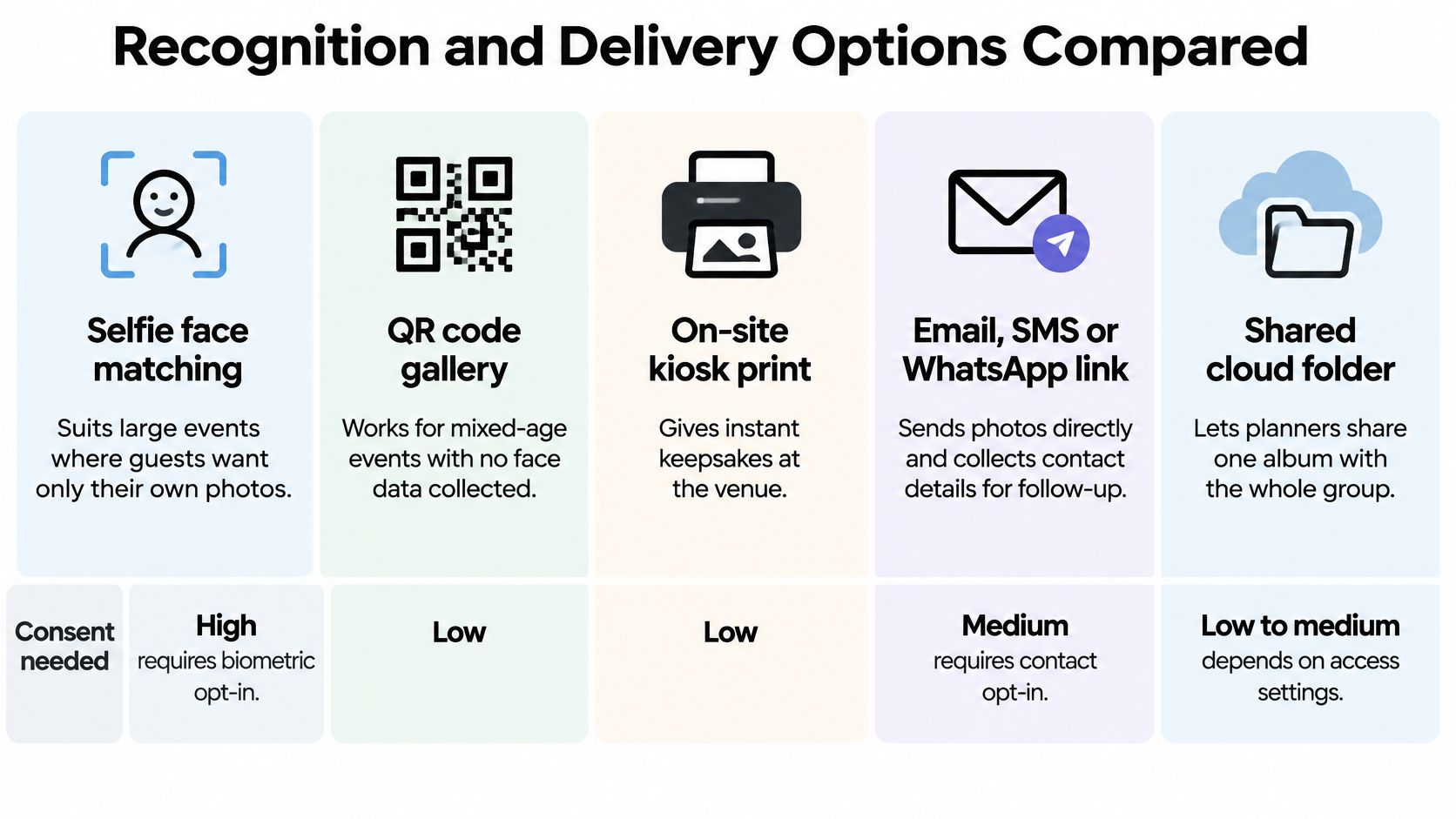
Five delivery methods serve different event conditions: selfie face matching, QR code galleries, on-site printing, direct links by email, SMS or messaging apps, and shared cloud folders. Choose based on what data the system stores, the consent work it creates, and how guests will access photos. A fast demo does not show the operational cost of preparing an index, managing contact details, or keeping print sales running during a network interruption.
Pick by what you store
Selfie face matching suits a large gallery where guests would otherwise scroll through many frames. The face index must be ready before doors open, and matching introduces biometric consent and data-handling duties. In a “find my photos” flow, a guest takes a selfie and receives matching images without installing an app or creating an account. Check how the queue behaves if uploads continue after the event begins.
A QR code photo gallery fits mixed-age events where face data is not appropriate. Guests open the same link, so browsing is less personalized, but the system avoids storing face data for matching. It still depends on a working link and a gallery that can handle guest traffic.
On-site kiosk printing suits weddings and venues where guests can buy a physical keepsake before leaving. The sale happens on site, so printer availability and a recoverable print queue affect revenue throughout the reception.
Email, SMS, or a messaging-app link fits alumni and donor follow-up. These options require contact details, which should be stored separately from face data. They also add steps for guests who only want to view a photo.
A shared cloud folder works for small groups likely to browse a collection. It does not match faces or generate sales by itself; selling prints requires an outside store.
For a 400-guest gala, selfie matching can return one attendee's frames instead of requiring a search through the full event gallery. At a 60-guest school evening, a QR gallery avoids face data, a better fit when minors are present. These examples show why guest count alone is not enough: consent, browsing effort, and the value of on-site sales all shape the choice.
Frictionless facial matching is not automatically the best attendee experience.
Before launch, confirm that the face index can be deleted on a set date and that guests have a non-selfie route to the same photos. Keep the choice tied to the whole operating model: stored data and consent obligations on one side, guest access and any print revenue on the other. The early retail preference for kiosk printing is described in an early-2000s look at photo kiosk competition, but event organizers should choose by today's workflow rather than historical kiosk demand.
Privacy and Consent Controls to Set Before Launch
Most product pages promise instant sharing, facial recognition, and social posting. They say little about consent, minors, opt-outs, retention, or a path that doesn't use a face. That gap is where organizers get surprised after the event, not during the demo.
Facial images used to identify a person can create biometric duties that differ by jurisdiction. GDPR, for example, treats biometric data used to uniquely identify a person as a special category of personal data, a point public-kiosk privacy guidance treats as part of the workflow, not a footnote. Confirm the rule for each venue with counsel. Don't copy one country's notice into another city's contract.
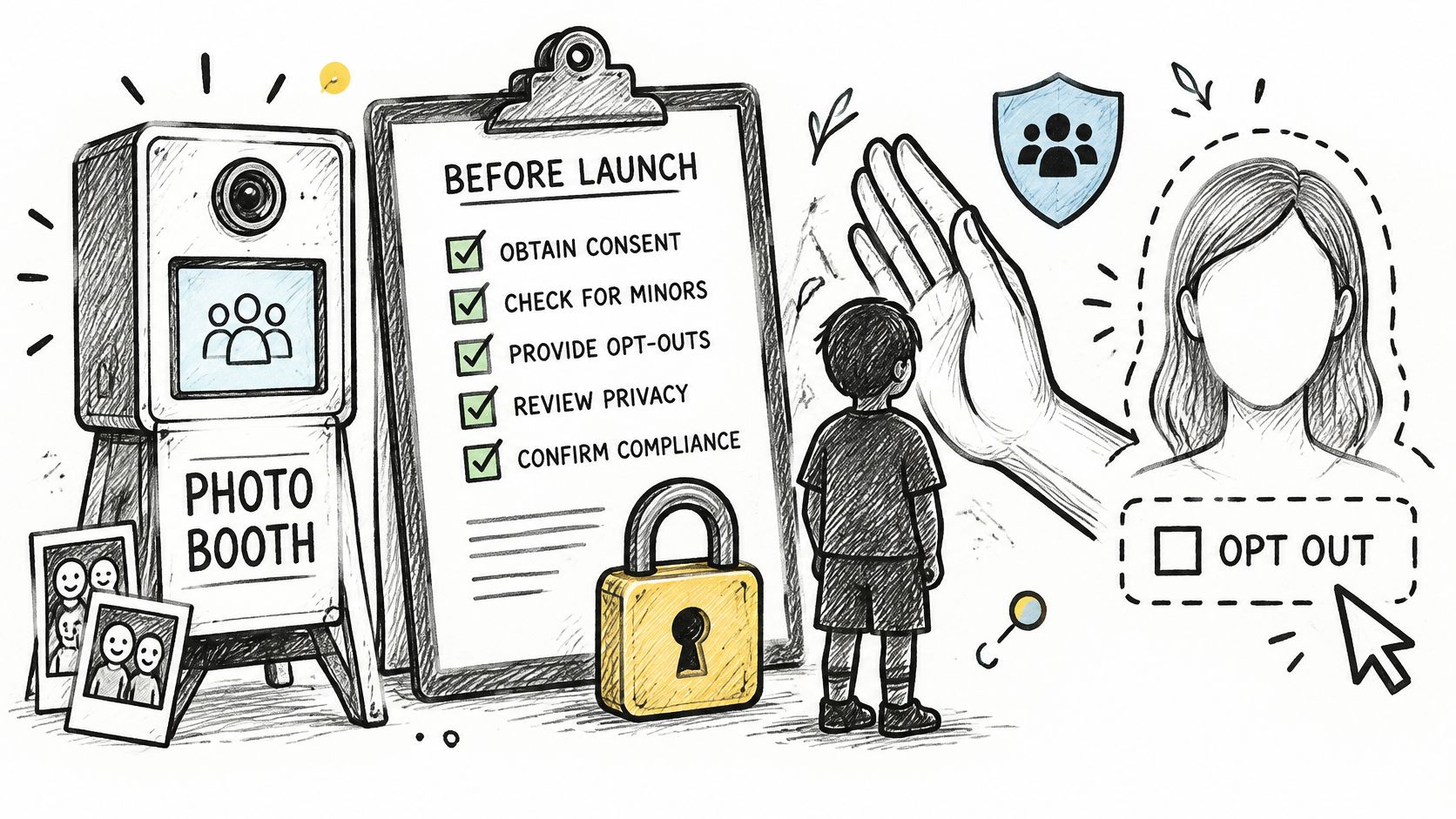
| Control | Setting to choose | Check before launch |
|---|---|---|
| Consent at capture | Visible notice and opt-in before face matching | Test the notice on a phone at the venue |
| Minors | Parental consent route or a non-biometric path for under-18s | Confirm the rule for your jurisdiction with counsel |
| Non-biometric alternative | QR gallery for guests who decline selfies | Confirm it shows the same photos as the matched gallery |
| Opt-out | Request form and removal process | Set a written response window in days before launch |
| Retention | Auto-delete date for gallery and face index | Record one delete date per event |
| Organizer approval | Review before publishing; approve featured sets | Confirm who can publish and who can edit |
| Queued media | Consent and deletion rules apply after sync | Test with the network off, then reconnect |
Consent belongs in the run of show
At galas, schools, fundraisers, and community events, trust and perceived control shape who participates. A few seconds saved in discovery doesn't offset a parent who thinks the only way in is a face scan.
At a school night, parents who decline selfies still need the same photos through the QR gallery. If the fallback album is thinner, the opt-out is cosmetic. The same test applies to donors at a fundraiser.
Write the retention date and the opt-out response time into the event record before the first photo is uploaded. Then confirm, in your organizer permission settings, that a file captured offline still inherits those rules after it syncs. A queue that forgets consent is a second, quieter database.
Pricing Models and Photographer Revenue Paths
A kiosk's license price is only one part of its operating cost. Many vendors do not publish fees, so request a quote that specifies what is covered, whether charges continue during idle months, how payouts and refunds work, and who pays for paper, repairs, and additional devices. Those terms determine whether an apparently low-cost setup can support continuous operation.
Five models are common:
- Per-event license: A flat fee for one event, with print and download sales kept by the photographer. Check guest caps, usage limits, and whether a postponed date requires a new license.
- Monthly or annual subscription: A recurring charge that may continue when there are no events. Idle months can reduce returns from a small number of jobs.
- Per-station or per-device license: A charge for each kiosk, laptop, or tablet. Adding another capture station raises the software cost.
- Revenue share: A portion of attendee sales goes to the vendor. The percentage alone does not show the photographer's net return. Confirm payout timing and responsibility for refunds.
- Hardware bundle: Equipment is purchased with a license. Repairs and printer supplies may remain the operator's responsibility, even if the software fee is low.
What one printer can clear
One commercial kiosk specification reports about 10 to 12 seconds for a 4×6-inch dye-sublimation print, a planning benchmark from a print-and-payment kiosk specification. At that rate, one printer could theoretically produce roughly 5 to 6 prints a minute, or about 300 to 360 in an uninterrupted hour. These are theoretical ceilings, not sales forecasts. Frame selection, paper changes, jams, retries, and multi-copy orders reduce actual throughput.
For phone galleries, retrieval performance matters more than printer speed. Measure the time from upload to successful retrieval, including median and p95 latency for selfie matching, concurrent uploads, and gallery search. Test what guests see when the network drops. Local capture with queued cloud uploads can keep an event running during an outage, but delayed syncing also means queued media must retain its applicable consent, deletion, and organizer approval settings.
Where the upsell actually sits
Photographers may earn revenue from prints, digital downloads, premium edits, featured sets, and event-approved sponsored frames. Which option performs best depends on guest demand, pricing, and the event's sales arrangement, so do not assume downloads or featured sets outperform prints. Digital sales also have costs: hosting, storage, bandwidth, and payment-processing fees. Print operations add paper, ink, and potentially another printer.
Revenue depends partly on whether guests can retrieve their photos. A fast printer cannot generate sales if the retrieval link fails, and queued uploads can delay access after a network interruption. Compare each revenue path against its full operating costs and the time guests wait to receive their images.
Choose the Setup That Fits Your Event Type
The earlier choices collapse into one table. Start from the event, not from the software logo.
| Event type | Starting setup | Privacy setting first | Revenue path |
|---|---|---|---|
| Gala or fundraiser | Selfie matching with curated sets and a QR fallback | Donor opt-out and retention date | Featured sets and downloads |
| Sports tournament | Bulk upload, venue QR, selfie matching | Minors' consent route | Print sales and team sets |
| Trade show | QR at the booth plus event site link | Contact data kept separate from face data | Event-approved branded frames and downloads |
| Alumni dinner | Email link plus QR gallery | Opt-in before any face matching | Downloads and prints |
| Wedding | On-site kiosk print plus digital gallery | Guest consent for kiosk photos | Prints and albums |
| School event | QR gallery without face matching | Parental consent and non-biometric route | Limited; usually cost recovery |
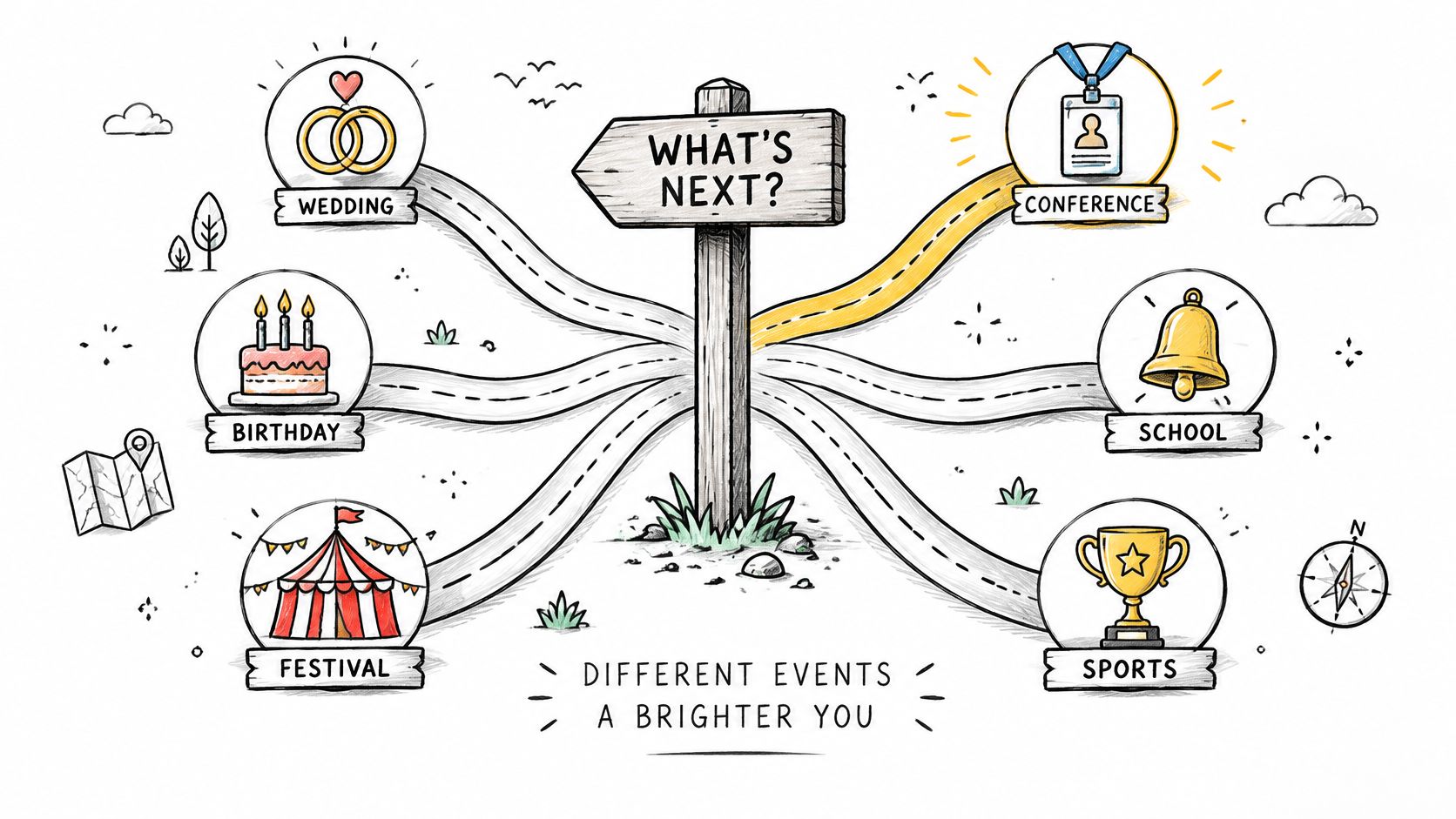
A sequence you can run this month
Count guests and the number of photos you expect. Pick the primary delivery path from the recognition comparison. Set the privacy controls before anyone uploads. Only then price the setup against the five license models, using the same four quote fields.
For a phone-first gallery, run a small pilot with one event link and one QR code. Measure the time from upload to a guest's first match or download. Record how many guests use the non-selfie path. For a school or alumni event, the pilot fails if that route shows a thinner set of photos.
An organizer-controlled link, a QR code, and optional selfie matching fit when matching is part of the plan and guests shouldn't need an app or an account. Skip matching when the room includes minors and a QR gallery already does the job.
Pick one upcoming event. Confirm the consent wording and the retention date. Rehearse the upload with venue Wi-Fi off, then on. If the local cache holds and the opt-out still shows the same photos, the setup is ready. If it doesn't, no feature list will save the night.
Saucial is built for the retrieval problem this comparison keeps returning to: organizers upload the gallery, guests open one link or QR code, and a selfie shows only their photos, with no app and typically no account. Photographers can add prints, downloads, and featured sets on that same path, while organizers keep approval and sharing controls. If your next gala, tournament, or fundraiser needs that find my photos flow, visit Saucial.