10 AI Photo Resizer Tools for Event Photographers

A sponsor wants a sharp image for a venue screen, attendees are waiting for a social-ready gallery, and the printer needs a larger file for signage. Meanwhile, the camera folder contains hundreds of mixed-resolution event photos, including clean RAW exports, tight crops, motion-soft frames, low-light group shots, and images with text or logos. The pressure isn't just to make files bigger. It's to produce the right derivative for each destination without damaging faces, fine detail, or the credibility of the original image.
The best AI photo resizer depends less on its maximum enlargement claim than on batch handling, face preservation, rendering speed, privacy controls, platform fit, and delivery requirements. A desktop upscaler may be ideal for a sponsor backdrop, while a browser tool can get a social gallery online quickly. A developer-led service may be the better choice when every image needs responsive crops, CDN delivery, and automated publishing.
The comparison below evaluates each tool against real event-photography workflows. Saucial fits after the resizing stage. It doesn't replace image preparation, but it can turn approved derivatives into a find my photos experience, with selfie photo matching and a shareable distribution path for attendees.
1. Topaz Photo
Topaz Photo, including Topaz Photo AI and Gigapixel, is the strongest fit when image quality matters more than a completely hands-off publishing pipeline. It runs as desktop and web software, and its AI Upscale or Resize tools can enlarge images up to 600%, with models such as Recover v3, High Fidelity, and Standard Max. Those options matter when one event gallery includes everything from a slightly soft portrait to a severely cropped dance-floor frame.
The main advantage is control over difficult subjects. Face recovery, deblur, and sharpening can work during the upscale, helping preserve eyes, hair, clothing texture, and fine edges. That makes Topaz useful for producing separate social, web, and print derivatives from a carefully selected set. It also supports batch processing and plugins for Lightroom and Photoshop, so photographers don't have to export every image into an isolated workflow.
Where it fits best
Use Topaz for hero images, sponsor assets, large prints, and rescue work. It isn't the tool I'd choose solely to generate thousands of responsive gallery thumbnails. Its strength is quality-focused preparation before delivery, not replacing a complete media infrastructure.
Model selection takes judgment. Recover v3 may help a challenging face, while a more restrained model can look better on already sharp documentary images. The available desktop and web options provide flexibility, but Topaz's licensing has several SKUs, so teams need to confirm which tier covers their hardware, users, and rendering needs. Desktop tiers that support unlimited local rendering can be attractive for photographers processing locally.
Practical rule: Keep the original export untouched, create a quality-controlled derivative in Topaz, and only then send that derivative into your gallery or Saucial settings.
2. Adobe Super Resolution
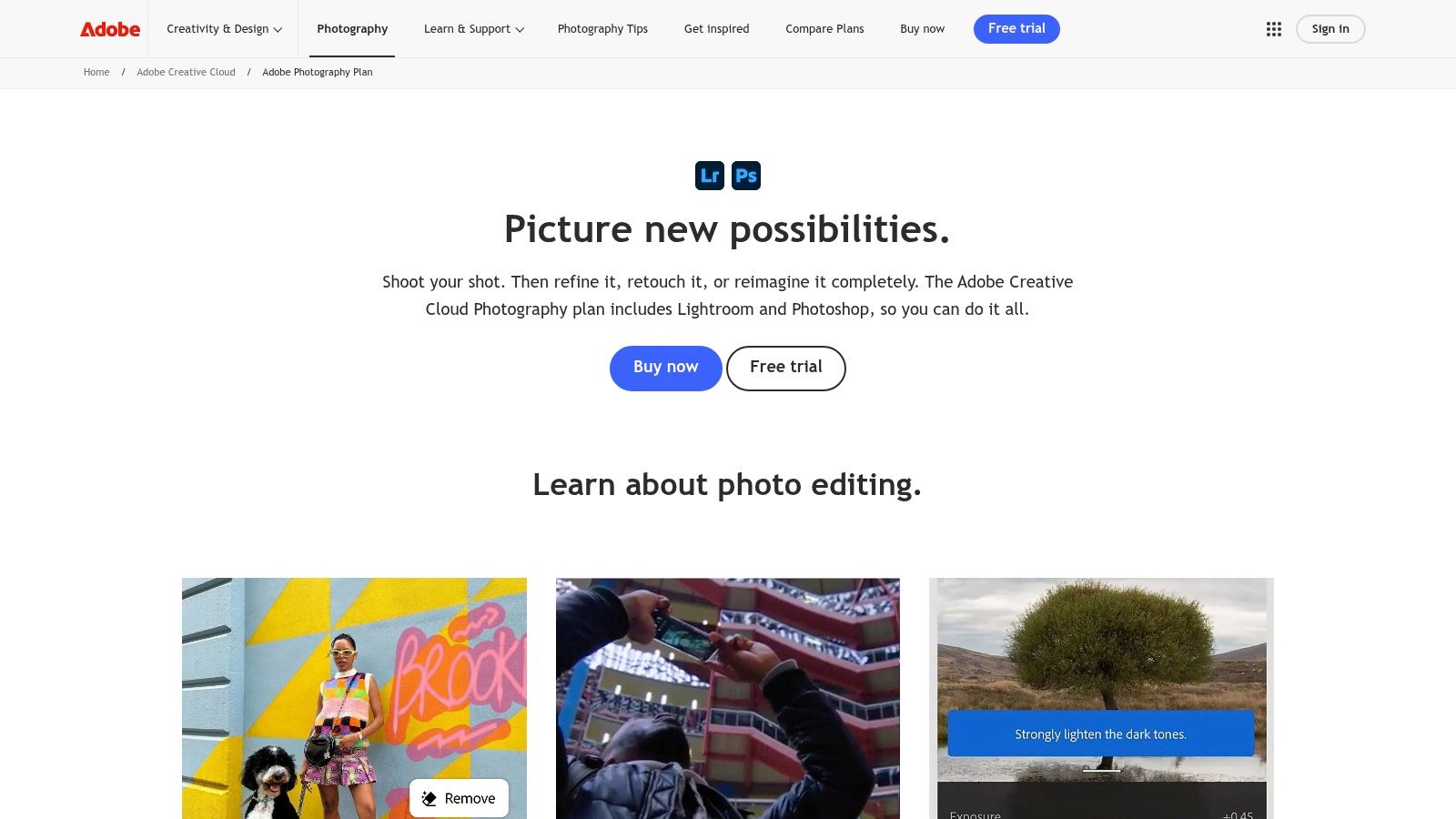
Adobe Super Resolution is a practical choice for photographers who already cull, edit, and export inside Lightroom Classic, Camera Raw, or Photoshop. Instead of adding another major application to the workflow, you can use Adobe's ML-based enlargement where the event images already live. That reduces handoffs, duplicate exports, and confusion about which version is final.
The workflow suits sponsor walls, signage crops, and social derivatives that need more pixel depth than the original crop provides. Lightroom's newer Enhance workflow can preserve a non-destructive relationship with the source, while broad RAW support keeps the process connected to the original capture and editing decisions. For a Lightroom-heavy event photographer, that continuity often matters more than having a long list of specialized models.
The trade-off for established Adobe teams
Adobe gives you fewer tuning choices than dedicated enlargement software. You won't get the same model-by-model experimentation as Topaz, and difficult low-resolution faces may need more manual checking. The benefit is a familiar culling and editing environment, reliable handling of documentary event photography, and fewer decisions for assistants who already know the Adobe interface.
The subscription model also affects long-term budgeting. Plan changes can alter which applications or features a team expects to use, so confirm the current photography plan before standardizing an event workflow. Adobe is strongest when resizing is one step inside a broader edit, export, and delivery system. It isn't the obvious choice for a developer who needs URL-based transformations or automated gallery rendering.
3. ON1 Resize AI
ON1 Resize AI is built for the part of event photography that happens after the client asks for something larger than the original delivery. A gala image may need to become a sponsor backdrop, a portrait may be selected for a large wall print, or a strong candid may need to survive a tight crop. ON1 combines AI enlargement with a print-oriented workflow, so the photographer can work on image size and production requirements in the same environment.
Its AI models include face recovery, and the application supports batch processing, export utilities, tiling, and gallery-wrap preparation. Those print tools are valuable when the final output isn't just a JPEG in a web gallery. You can prepare large-format material with more awareness of how the image will be placed, wrapped, or divided for production.
Why print photographers may prefer it
ON1 works standalone or as a plugin for Photoshop, Lightroom, and Capture One. That makes it easier to retain an existing edit routine while adding a dedicated enlargement stage. A perpetual-license option is available alongside bundles and subscription-style offers, which may appeal to photographers who want to limit recurring software commitments.
The interface can feel broader than a simple resizer because it includes production features that web-only users won't need. Pricing and bundle details can also change, so check the current ON1 Resize AI product page before buying. For a large sponsor print, that extra setup is justified. For quick attendee previews, it may be more software than the job requires.
A useful discipline is to compare a natural face, a patterned jacket, a dark reception image, and a logo-bearing frame at the intended output size. AI enlargement can improve apparent sharpness, but it can also invent detail that wasn't captured. The original should remain the reference for authenticity.
4. Cloudinary
Cloudinary solves a different problem from Topaz and ON1. It is a developer-friendly media platform for transforming and delivering images at scale. If an event gallery needs square posts, vertical stories, responsive website images, thumbnails, and device-appropriate formats from one master upload, Cloudinary can automate those derivatives through URL-based transformations, SDKs, CDN delivery, and caching.
Its automatic gravity options can prioritize faces, subjects, or objects during a crop. That matters in event galleries, where a center crop can cut off the person who makes the image worth sharing. You can combine focal detection with resize, crop, device-pixel-ratio, format, and quality rules, then deliver the result through a web or app experience.
Best for automated distribution
Cloudinary is a strong fit when the photographer or event team has technical support. A developer can create repeatable transformations for gallery cards, social previews, sponsor pages, and attendee-facing interfaces. It can also handle traffic spikes more naturally than a local desktop export workflow, because delivery and caching are part of the platform.
The cost is setup. Someone needs to understand transformation syntax, asset organization, permissions, caching, and any separately billed AI features. Cloudinary doesn't remove the need for visual quality control, either. Automatic face framing can preserve a subject, but it won't know whether a crop leaves enough breathing room for a sponsor logo or whether an image should be excluded because the expression is unflattering.
For a photographer handing off a prepared event set, the practical sequence is simple: preserve masters, upload approved derivatives, define transformations, and connect the resulting assets to Saucial upload or another attendee distribution layer. Cloudinary handles media delivery. Saucial handles the find my photos experience.
5. imgix
imgix is another strong option for teams publishing event images across several digital surfaces. Its real-time, URL-based image processing can create responsive derivatives without requiring a photographer to export every variation by hand. That makes it useful for event websites, mobile galleries, sponsor pages, and social previews where aspect ratios change by placement.
The crop engine supports faces, focal points, entropy, and edges. In practical terms, that gives a publishing system more ways to decide what should remain visible when an image changes shape. A group photo may need a different treatment from a portrait, while a stage image with a sponsor banner may need a focal area that isn't centered on a face.
Where imgix earns its place
imgix is most valuable when an organization already has a web or app team. Client libraries support responsive derivatives, and features such as Super Resolution, background removal, and expanding generative imaging options can extend the pipeline beyond basic resizing. A publisher, venue group, or large event operator can centralize image behavior instead of asking each photographer to prepare every output manually.
The downside is that smaller teams may spend more time integrating than they save. Credits-based pricing can also be unfamiliar compared with a desktop license, and the value becomes clearer at operational scale. imgix isn't a beginner's browser resizer. It's infrastructure for a team that wants consistent image behavior across many pages and devices.
For attendee delivery, use imgix to serve the right derivative quickly, then connect those assets to an event photo sharing link or QR code photo gallery. The system should still preserve an original or high-quality archive outside the public delivery layer.
6. Let's Enhance
Let's Enhance is aimed at teams that need a browser-based AI resizer without installing a desktop application. That makes it approachable for assistants, event coordinators, and photographers who need to produce a batch of shareable files while traveling or working from a machine that isn't their usual editing workstation.
The platform combines upscaling with presets, sharpening, restoration, and background removal. Paid plans provide watermark-free output, while the service offers subscriptions, pay-as-you-go credits, and an API for automation. Higher tiers can produce outputs reaching hundreds of megapixels, which can help with selected sponsor deliverables or large-format requests, provided the source image contains enough trustworthy information to support the result.
A useful browser compromise
The appeal is speed of adoption. A non-technical user can upload, select a preset, review the result, and move on to delivery. That works well for a small batch of portraits, social images, or sponsor files when a full desktop installation would slow the team down.
The limits show up in complex production work. Credit caps and megapixel restrictions depend on the plan, and advanced color or noise control is lighter than in professional desktop software. A browser workflow also deserves a privacy review before uploading images containing children, IDs, backstage credentials, or location-rich metadata. Confirm what is processed remotely, whether previews are retained, and how account deletion affects stored assets.
After quality control, approved files can move into Saucial authentication for a controlled attendee experience. The resizer prepares the image. The gallery platform determines who can discover and retrieve it.
7. Upscale.media by Pixelbin
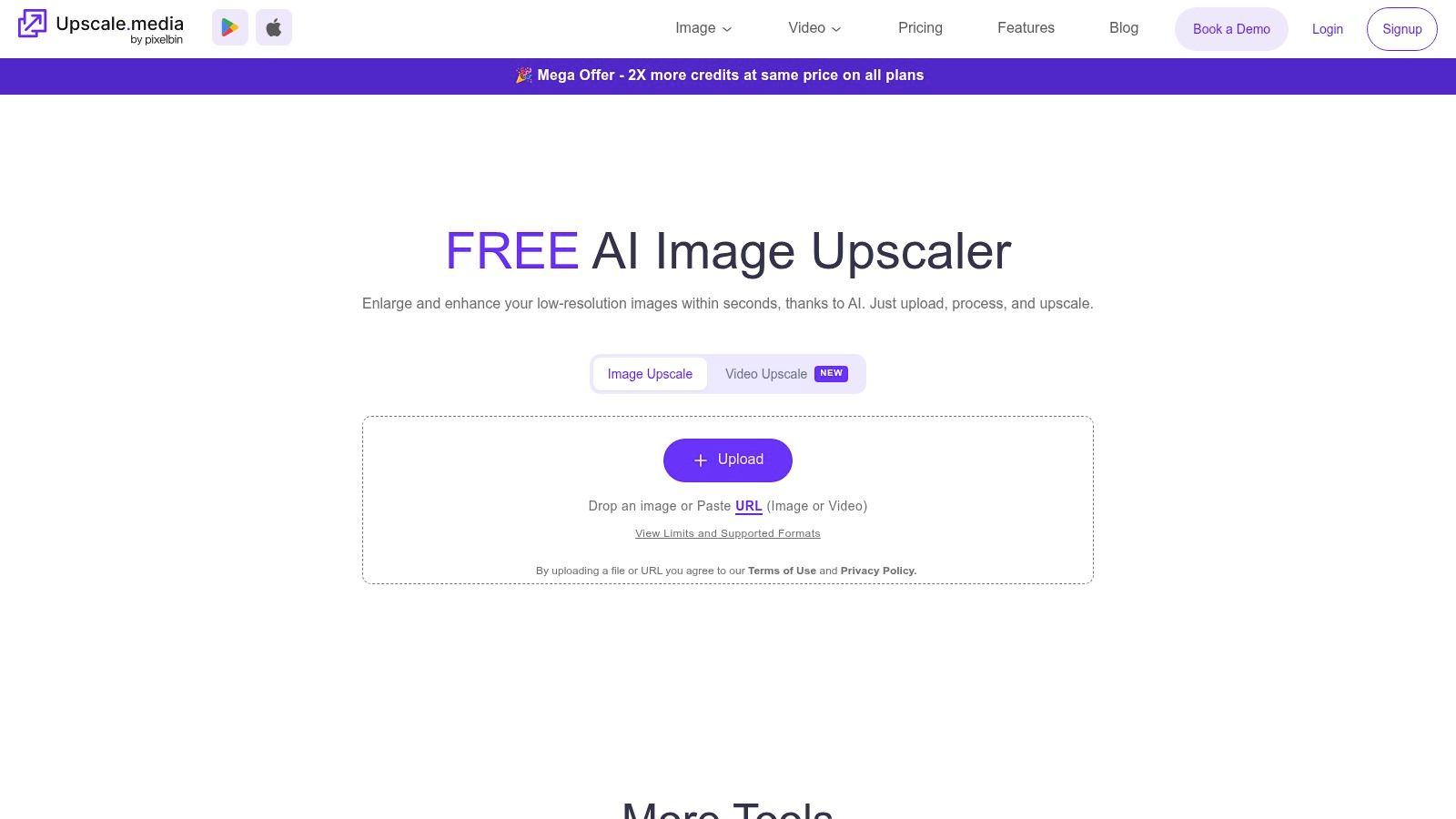
Upscale.media by Pixelbin is a straightforward choice for photographers who need a quick upscale without the controls of a full desktop editor. Its one-click workflow supports face enhancement, and its console and API make it possible to create repeatable bulk presets. That combination suits occasional event work as well as a small automation experiment.
The service offers a free trial quota and pay-as-you-go credits. Clear per-credit pricing and inexpensive small top-ups can lower the barrier for teams that don't want to commit to a large software plan before testing their actual volume. It can be useful for producing a fast 2x or 4x version of an image for a social post, web card, or attendee preview.
Keep the job simple
Upscale.media works best when the input is reasonably clear and the required output is uncomplicated. It has fewer professional controls than Topaz, ON1, or a full Adobe workflow, so photographers shouldn't expect detailed noise decisions, elaborate print preparation, or extensive local editing. For a mixed gallery, review faces and fine text rather than trusting every result automatically.
The API is the more interesting feature for event operators. A developer can connect it to an upload or processing queue, apply a consistent enlargement preset, and send the approved output onward. That can reduce manual handling for recurring events, but it doesn't solve cropping logic, consent management, or attendee discovery by itself.
Use Saucial upload only after you know which files are approved for sharing. A fast resizer can accelerate publication, but event organizers still need control over galleries, permissions, and the difference between a public highlight set and a private attendee retrieval experience.
8. Icons8 Smart Upscaler
Icons8 Smart Upscaler is a lightweight web tool for standard enlargement tasks. Its interface is easy to understand, and its API can support batch processing when a custom event pipeline needs predictable 2x or 4x outputs. That makes it a reasonable option for social-ready exports, web cards, and routine gallery derivatives where the source files are already in good shape.
The service also includes artifact cleaning, which can help when a compressed image needs a cleaner presentation. A free tier lets teams test a small number of images before they decide whether the result is acceptable for their event style. The important test isn't just whether the output looks sharper. Check skin texture, hair, dark backgrounds, stage lighting, and sponsor marks at the actual display size.
A good entry point, not a full finishing suite
Icons8 doesn't offer the same fine-tuning depth as dedicated professional upscalers. It also sits within the wider Icons8 ecosystem, so pricing and licensing require a close look if a team plans to use related assets or services. That isn't a problem for a simple batch, but it matters when a photographer is standardizing a production pipeline for multiple clients.
For event work, use it for clean, repeatable derivatives rather than rescue attempts. A heavily cropped face, motion-soft frame, or tiny image with important text deserves a more controlled application. If you need automated attendee distribution, connect the API output to your own gallery system or a service that supports an event photo sharing link. The tool can prepare the file, but it won't decide whether the person pictured has permission to receive or share it.
9. Pixelmator Pro
Pixelmator Pro is a useful Mac-only option for photographers who work from an Apple Silicon workstation and want on-device enlargement inside a broader editor. Its ML Super Resolution works alongside denoise and de-banding tools, so a photographer can clean up a difficult event frame before exporting a social, web, or print derivative.
The application supports RAW files and can participate in batch-style workflows through Shortcuts and Automations. That makes it more capable than a one-image browser utility, especially for a solo photographer who wants repeatable exports without building a server-side system. Its core app uses a one-time purchase model, although some premium features or content may involve an optional subscription.
Strong for local Mac production
Pixelmator Pro is fast on compatible Apple hardware and is well suited to moderate enlargements, social exports, and quick finishing. The local workflow can also be appealing when event images include sensitive faces, children, badges, or venue details that shouldn't be uploaded unnecessarily. Local processing doesn't eliminate every privacy concern, but it reduces dependence on a remote upload step.
The obvious limitation is platform compatibility. A mixed team using Windows machines, remote contractors, or shared workstations may find macOS-only software restrictive. Pixelmator also isn't a publishing backend, so it won't generate responsive transformations or attendee search on its own.
Once the approved images are ready, Saucial's event photo sharing platform can provide the attendee-facing layer. That combination works when the photographer wants local image preparation and the organizer wants a simple route from gallery upload to find my photos.
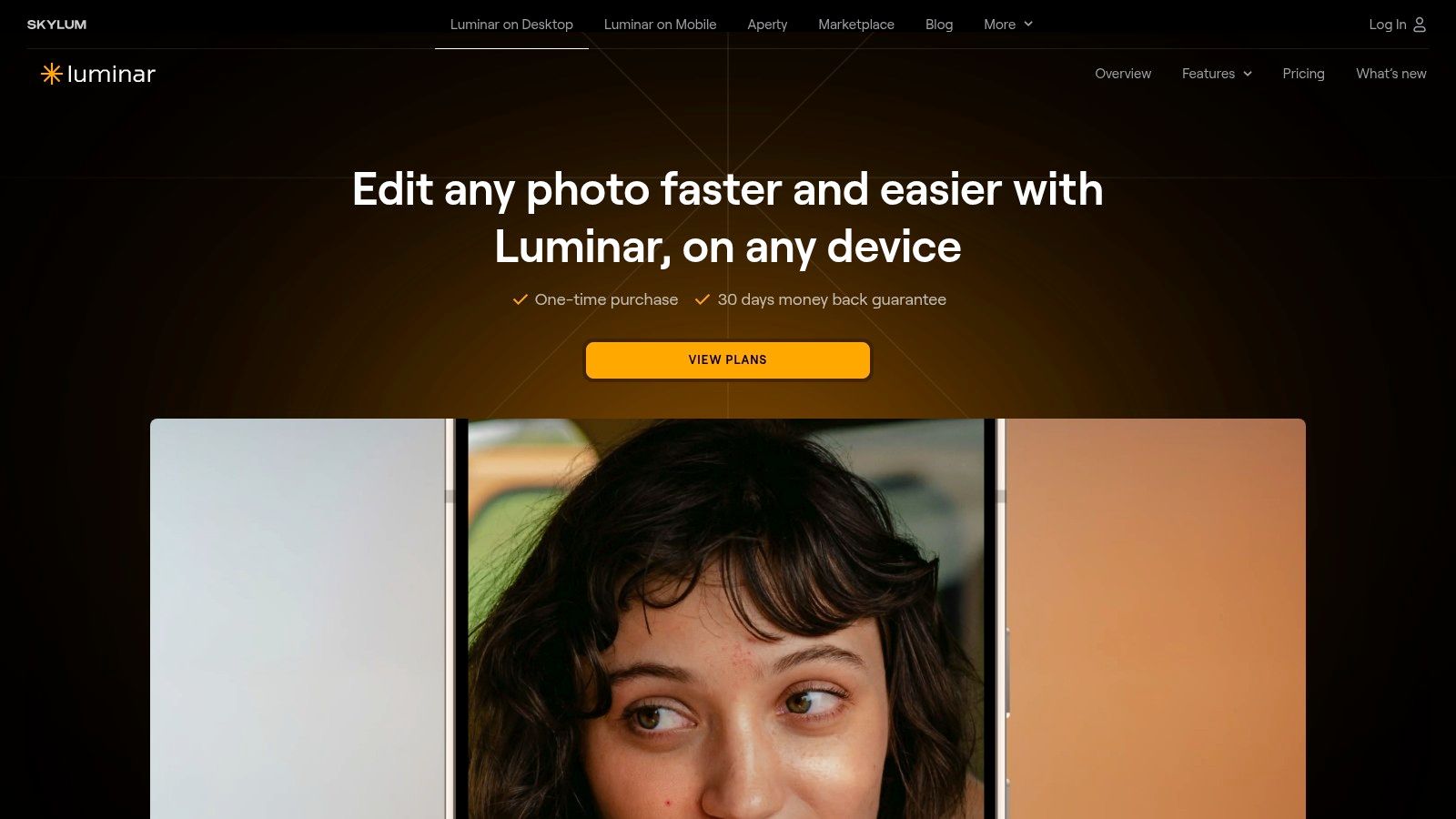
10. Luminar Neo
Luminar Neo suits teams that want resizing and light retouching in one approachable interface. Its Upscale tool can enlarge images up to 6x, while Noiseless AI and SuperSharp AI can help with common event problems such as high-ISO noise, mild softness, and distracting loss of clarity. The software also includes broader creative modules, including panorama and focus-stacking tools.
That combination is useful for a photographer or coordinator who doesn't want to learn a technical image pipeline. A selected gala portrait can be enlarged, cleaned up, and prepared for a gallery without switching between several applications. The workflow is less about industrial batch publishing and more about making a small set of important images presentable quickly.
Good for light finishing
Luminar Neo's simplicity is its main advantage. Non-technical users can understand the basic editing path, and the tool can be effective for social images, highlight galleries, and modest sponsor deliverables. It isn't the first choice for a large archive that needs carefully controlled print production, API transformations, or highly specialized model selection.
Licensing needs attention. Which AI tools are included can vary, and some features or Gen functionality may require additional passes or purchases. Before committing, test representative images from the actual event rather than relying on a polished demo. Pay particular attention to faces, patterned clothing, dark reception scenes, group shots, and text in sponsor assets.
AI enhancement also has a limit that applies to every tool in this list. It can make a questionable image look more convincing by inventing plausible detail. For journalism, documentation, dispute resolution, or any image where fidelity matters, preserve the original and label enhanced derivatives clearly. A sharper file isn't automatically a truer file.
Top 10 AI Photo Resizers, Feature Comparison
| Tool | Core features ✨ | Quality / UX ★ | Price / Value 💰 | Target / Use-case 👥 | USP / Outcome 🏆 |
|---|---|---|---|---|---|
| Topaz Photo (Topaz Photo AI + Gigapixel) | Desktop & web AI upscale to 600%, face recovery, batch, Lightroom/PS plugins ✨ | ★★★★☆ Best-in-class detail & face retention; model tuning needed | 💰 Mid–High; multiple SKUs (desktop/web tiers) | 👥 Pro photographers & event teams needing print-ready upsizes | 🏆 Superior face/detail recovery; deep pro workflow integration |
| Adobe Super Resolution (Lightroom/Photoshop) | ML Super Resolution in LR/PS/ACR; non‑destructive Enhance; RAW support ✨ | ★★★★☆ Reliable, integrated output inside Adobe workflows | 💰 Subscription (Creative Cloud Photography) | 👥 Adobe-centric studios & editors | 🏆 Seamless fit into existing culling/edit pipelines |
| ON1 Resize AI | Print-focused enlargement, AI models, tiling & gallery wrap, plugins ✨ | ★★★★☆ Excellent for very large prints; production finish options | 💰 Mid; perpetual-license option available | 👥 Print producers, event production teams | 🏆 Optimized for banners/backdrops and production finishing |
| Cloudinary | Dev-friendly media platform: g_auto face crops, URL transforms, CDN ✨ | ★★★★☆ Scales to traffic; consistent people-first framing | 💰 Scalable usage-based; add-on AI billed separately | 👥 Developers, large events, platforms | 🏆 Automated people-first crops + CDN delivery at scale |
| imgix | Real-time URL image pipeline; face/focal crops, Super Resolution options ✨ | ★★★★☆ High-performance responsive derivatives for multi-ratio exports | 💰 Usage/credits; best value at scale | 👥 Publishers, dev teams powering event sites | 🏆 Fast responsive derivatives & clean integration for social exports |
| Let's Enhance | Browser upscaler with batch, background removal, API & presets ✨ | ★★★★☆ Fast, user-friendly browser workflow; good quality/speed balance | 💰 Affordable pay‑as‑you‑go or subscription tiers | 👥 Non-technical teams & organizers needing quick outputs | 🏆 Easy adoption, no install, quick ready-to-share derivatives |
| Upscale.media (Pixelbin) | One‑click 2x/4x upscales, face enhancement, API & bulk presets ✨ | ★★★☆☆ Simple, reliable results for straightforward upscales | 💰 Low-cost per-credit pricing; free trial quota | 👥 Teams testing automation or low-volume pipelines | 🏆 Clear pricing and cheap on‑ramp for automated workflows |
| Icons8 Smart Upscaler | 2x/4x upscaling, artifact cleaning, API, small free tier ✨ | ★★★★☆ Quick, consistent results; easy trial (3 free images) | 💰 Low–Mid; tied to Icons8 ecosystem plans | 👥 Small teams, social-sized exports | 🏆 Straightforward UI + API for rapid batch exports |
| Pixelmator Pro (ML Super Resolution) | Mac-only ML Super Resolution, denoise, RAW support, Shortcuts batch ✨ | ★★★★☆ Very fast on Apple Silicon; strong 2x/4x quality | 💰 One-time purchase (macOS only) | 👥 Mac-based photographers & event workstations | 🏆 Optimized on-device speed and efficiency for Apple hardware |
| Luminar Neo (Upscale) | Upscale up to 6x + AI cleanup modules (Noiseless, SuperSharp) ✨ | ★★★★☆ One-stop edit + upscale; good for non‑technical retouching | 💰 Mid; modular licensing can add costs | 👥 Non-technical teams wanting quick retouch+upscale | 🏆 Combined editing + upscaling in a simple UI for fast delivery |
Build a Resizing Workflow That Delivers
The right choice follows the destination. For demanding enlargement, large prints, and sponsor backdrops, start with Topaz Photo or ON1 Resize AI. Topaz offers strong face and detail handling with multiple models, while ON1 is particularly useful when print preparation, tiling, gallery wrap, and production sizing are part of the job.
Choose Adobe Super Resolution when the team already works in Lightroom, Camera Raw, or Photoshop. Keeping the enlargement step inside the existing edit and culling workflow can be more efficient than adding a separate application. The trade-off is less model-level control, but that simplicity is often valuable during a fast post-event delivery.
Browser tools such as Let's Enhance, Upscale.media, Icons8 Smart Upscaler, and Luminar Neo work well when non-technical users need quick results. They're useful for selected batches, social derivatives, and routine web delivery. They're less suitable when the job demands detailed print control, extensive local processing, or a complex quality-review process.
For developer-led publishing, choose Cloudinary or imgix. These platforms are designed for responsive transformations, face-aware cropping, format and quality controls, caching, and delivery across websites or applications. They require real integration work, but they can remove repetitive export tasks when an organization publishes large event galleries across many channels.
Before standardizing a tool, test files that represent the event rather than only clean studio portraits:
- Faces: Include close portraits, small faces in group shots, glasses, makeup, and varied lighting.
- Motion: Check dancing, sports action, walking subjects, and shutter-speed softness.
- Low light: Test receptions, conference halls, stage lighting, and strong color casts.
- Groups: Confirm that automatic crops don't remove people at the edge of the frame.
- Text and branding: Review sponsor logos, signage, badges, banners, and fine linework.
- Delivery sizes: Compare the result at social, web gallery, screen, and print dimensions.
Privacy deserves the same operational attention as image quality. Local processing, browser-based processing, and cloud processing create different decisions about uploads, caching, previews, metadata, and retention. Teams handling faces, children, IDs, or GPS-rich images should document what leaves the workstation, what metadata is stripped, whether previews persist, and how long service accounts retain files. Generic “secure” language isn't enough for an event workflow.
Use this implementation sequence:
- Preserve masters: Keep original captures and high-quality edited exports separate from public derivatives.
- Define presets: Create named outputs for social posts, web galleries, screens, sponsor assets, and print.
- Process a small quality-control batch: Test representative faces, motion, low-light images, groups, and text before processing the complete set.
- Document privacy and retention: Record processing locations, metadata decisions, access controls, and deletion procedures.
- Publish approved derivatives: Send the final files to the right gallery, API, CDN, or event photo sharing link.
Saucial can support the distribution stage when attendees need a fast find my photos experience. An organizer or photographer can upload approved images, provide a shareable link or QR code photo gallery, and let guests use selfie photo matching to retrieve images they appear in. That creates a more practical alternative to sending a crowded folder and asking attendees to search manually.
The same workflow can support a face recognition event gallery, post-event engagement, and a photographer upsell to attendees through approved digital downloads, prints, premium edits, featured sets, or branded frames. It can fit sports tournament photo sales, a gala fundraiser photo gallery, trade show photo sharing, alumni events, community festivals, and UGC from events. Organizers remain in control of what is shared and how the attendee experience works, which matters as much as the quality of the resized file.
Saucial turns approved event images into a practical find my photos experience with selfie photo matching, shareable event photo sharing links, and QR code photo gallery distribution. After you resize and quality-check your derivatives, invite attendees to discover their moments faster and give photographers a clearer path to post-event engagement and attendee upsells.